ข้ามไปเนื้อหา
AI-Powered Desktop Companion

Amazon Quick Desktop

Feature overview — Key capabilities, interface areas, and important settings
For AWS Partners, Customers, and Internal Enablement

Generally available on macOS and Windows AI-powered assistant Runs in the cloud, works with your local files

Checked against official AWS documentation on 17 Oct 2026

The desktop app has been generally available since 9 Sep 2026 in 7 AWS Regions: US East (N. Virginia), Asia Pacific (Sydney), US West (Oregon), Europe (Ireland), Europe (London), Asia Pacific (Tokyo), Europe (Frankfurt). Singapore and Thailand are not included. (What's New, Sep 2026)

Quick Capabilities

What Amazon Quick Desktop can do — sourced from AWS Official Documentation and Product Page

Work with any file, in any app

Connect to email (Outlook, Gmail), team chat (Slack, Teams), CRM, databases, and local files — ask anything and Quick pulls the answer from wherever it lives, without switching apps.

Source: aws.amazon.com/quick/desktop

Work with local files directly

Read, write, search, and index files in folders you grant access to (Customize > Knowledge). Adding a folder grants access only; if you turn on full-content search or knowledge graph extraction for a folder, its files are uploaded and indexed in your Amazon Quick account.

Source: docs.aws.amazon.com — Knowledge

Turn scattered info into deliverables

Pull together information from spreadsheets, Slack threads, and emails into a Word doc, Excel model, or presentation — what used to take an afternoon now takes a single conversation.

Source: aws.amazon.com/quick/desktop

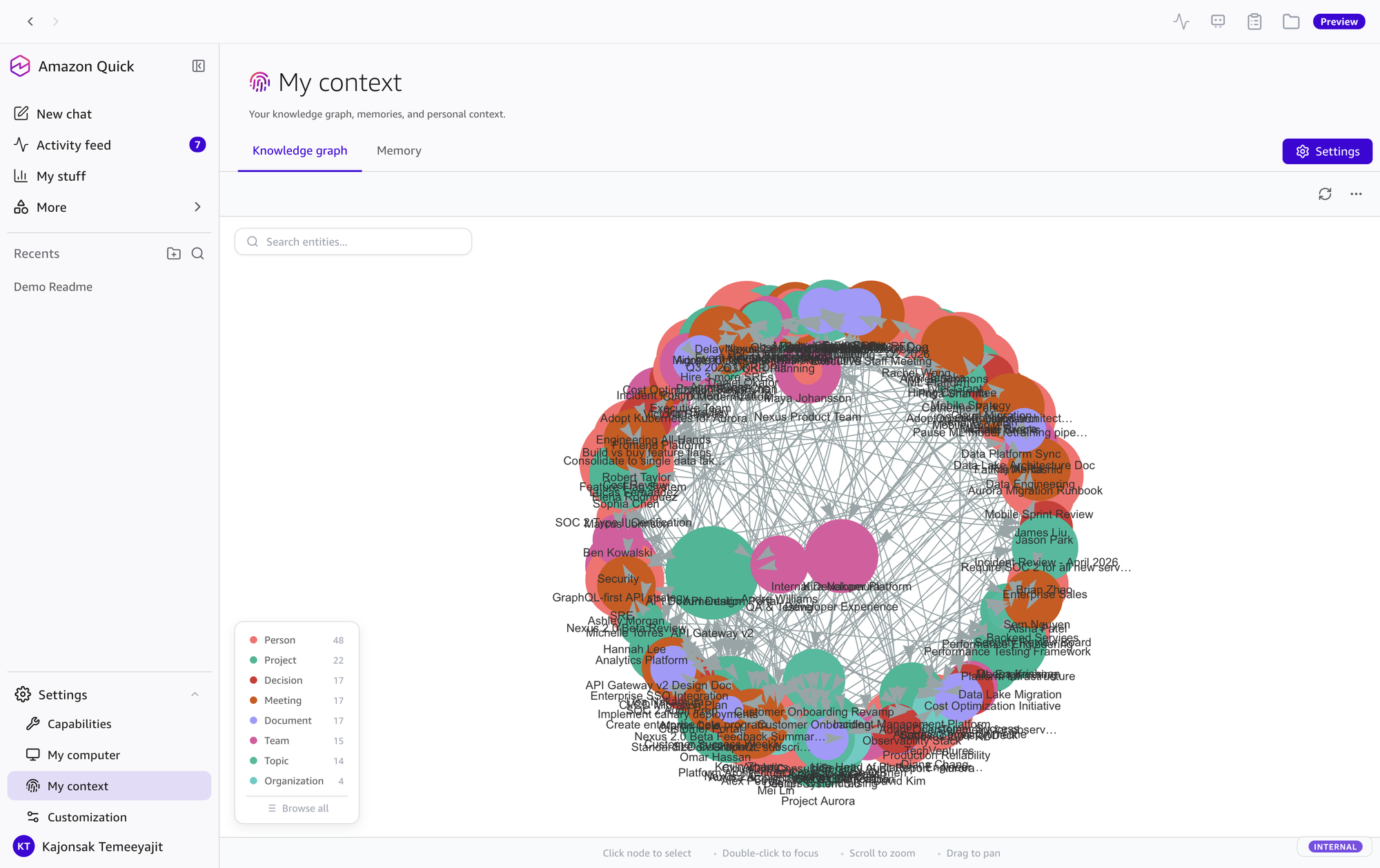
Personal knowledge graph

Extracts entities and relationships from Slack, email, calendar, and files — builds a graph of people, customers, projects, events, and channels. Gets smarter the more you use it.

Source: docs.aws.amazon.com — Knowledge graph

Proactive notifications & Activity feed

Background agents monitor Slack, email, and calendar to surface what matters — meeting prep, missed follow-ups, and scheduling conflicts. Activity feed includes AI summaries and suggested actions.

Source: docs.aws.amazon.com — Notifications

Routines in Mission Control (Automation)

Pair an agent with a routine (a schedule) from Mission Control in the top bar — monitor channels, triage emails, summarize meetings. Routines run in the cloud, even when the app is closed or the computer is off; steps that need local files, browser automation, or local code need the computer on with the app connected. Results go to your feed or a connected app.

Source: docs.aws.amazon.com — Mission Control

Browser automation

Browser Automation can launch a browser, navigate, fill forms, take screenshots, and extract text. You can choose System default, Chrome, Edge, Brave, or Firefox. The default mode opens a separate browser instance with a copy of your profile; Use my existing browser connects to your running browser, where your logins, cookies, and extensions are available (Settings).

Source: docs.aws.amazon.com — Browser automation

MCP servers & coding agents

Add custom MCP servers (local command, remote server, or import from Kiro, Claude Code, AIM, Antigravity, and QuickWork exports) from Customize > Connectors. Connect coding agents such as Kiro and Claude Code to delegate coding tasks.

Source: docs.aws.amazon.com — Connectors

Voice input

Current AWS documentation does not describe voice input (the former Voice page now redirects). Check availability and options in the current app.

Background tasks (parallel)

Spawn parallel workers for complex tasks — batch processing, parallel research, multi-source analysis. Track progress in the Tasks panel while continuing to work in chat.

Source: docs.aws.amazon.com — Background tasks

Remembers your work context

Remembers your projects, people, and recent conversations — when you ask for a recap or follow-up email, no starting over. Just pick up where you left off.

Source: aws.amazon.com/quick/desktop

Privacy & Security

Amazon Quick runs in the cloud. Conversations, memory, knowledge graph, Library, and search index are kept per user in your Amazon Quick account. The desktop app keeps only app settings, folder permissions, locally configured MCP and coding-agent servers, and sign-in tokens. Your data is never used for AI model training.

Source: docs.aws.amazon.com — Security, privacy, and architecture

What the desktop app adds

What the desktop app adds to Amazon Quick: access to files in folders you grant, browser automation in your own browser, local code execution, and locally configured MCP servers and coding agents. Conversations, memory, and the knowledge graph are kept in your Amazon Quick account and are available across web, mobile, and desktop.

Source: docs.aws.amazon.com — What is Amazon Quick on desktop?

1. Application Interface Overview

Amazon Quick Desktop consists of 5 main components as shown in the screenshot below.

About the screenshots: Images on this page are from an earlier build. Menu names have changed in the current app: Customize (Skills, Agents, Knowledge, Connectors) replaces the old Settings > Capabilities / My computer pages, and Mission Control in the top bar replaces Scheduled Tasks. Spaces are in the left navigation.
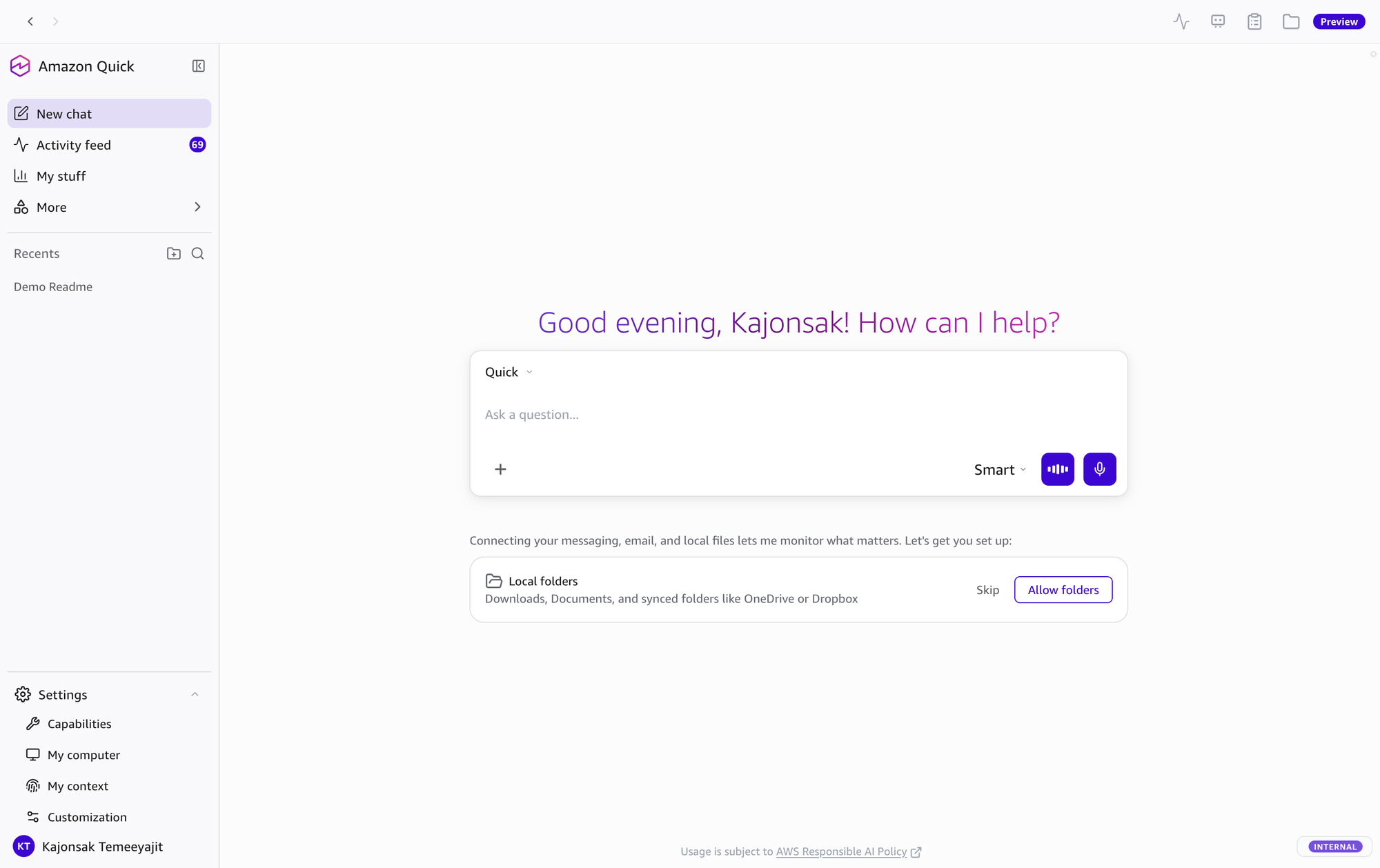
Amazon Quick Desktop - Overall Interface (Light Mode)
① SIDEBAR
② TOP BAR
③ MAIN CHAT
④ INPUT AREA
Amazon Quick Desktop — Main View (Light Mode)
① Sidebar — Navigation, Recents, Settings
② Top Bar — Feed, Mission Control, Tasks, Data & Apps
③ Main Chat — AI Responses, Artifacts
④ Input Area — Message, Model, Voice, Send
⑤ Session Tab — Document preview panel

Component Details

In the current app, the navigation rail on the left has Chat, Feed, Library, Customize, Apps, Spaces, and More; More opens Research, Data, Dashboards, and Automations. Recents remains below the navigation and can organize conversations into folders. Source: Understanding the desktop interface

The screenshots below are from an earlier build and use older labels:

  • New chat (now Chat) — Start a new conversation
  • Activity feed (now Feed) — Items from routines and connected services such as Slack and Email (shows count badge)
  • My stuff (now Library) — Artifact library (presentations, spreadsheets, images)
  • More — In the earlier build, a dropdown of items that opened in the web app (see below)
  • Recents — Conversation history, organizable into folders (e.g. "AWS Accounts 18", "AWS Summit 7")

"Activity Feed" — Full Page View:
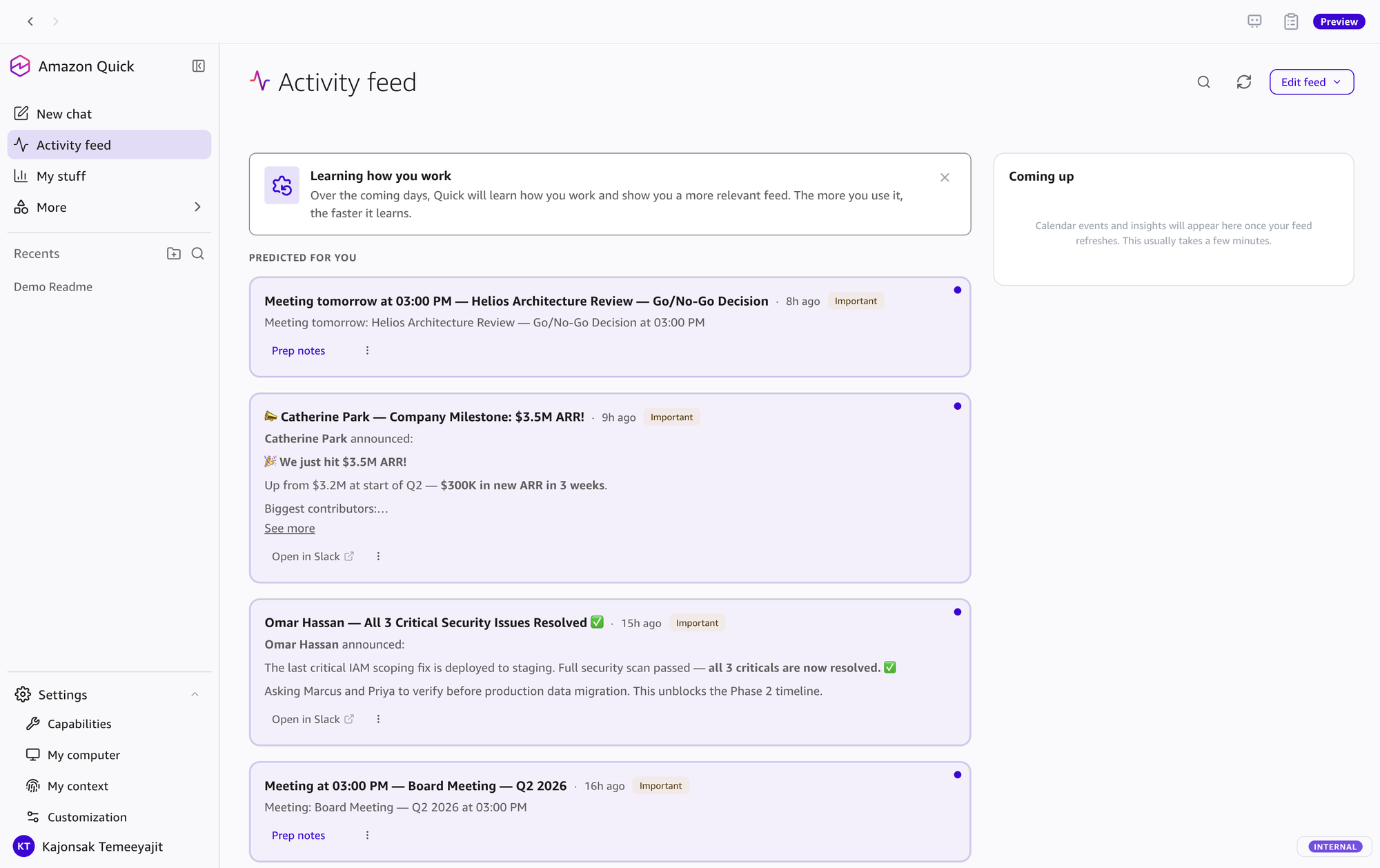
Activity Feed — Full Page View
Activity Feed

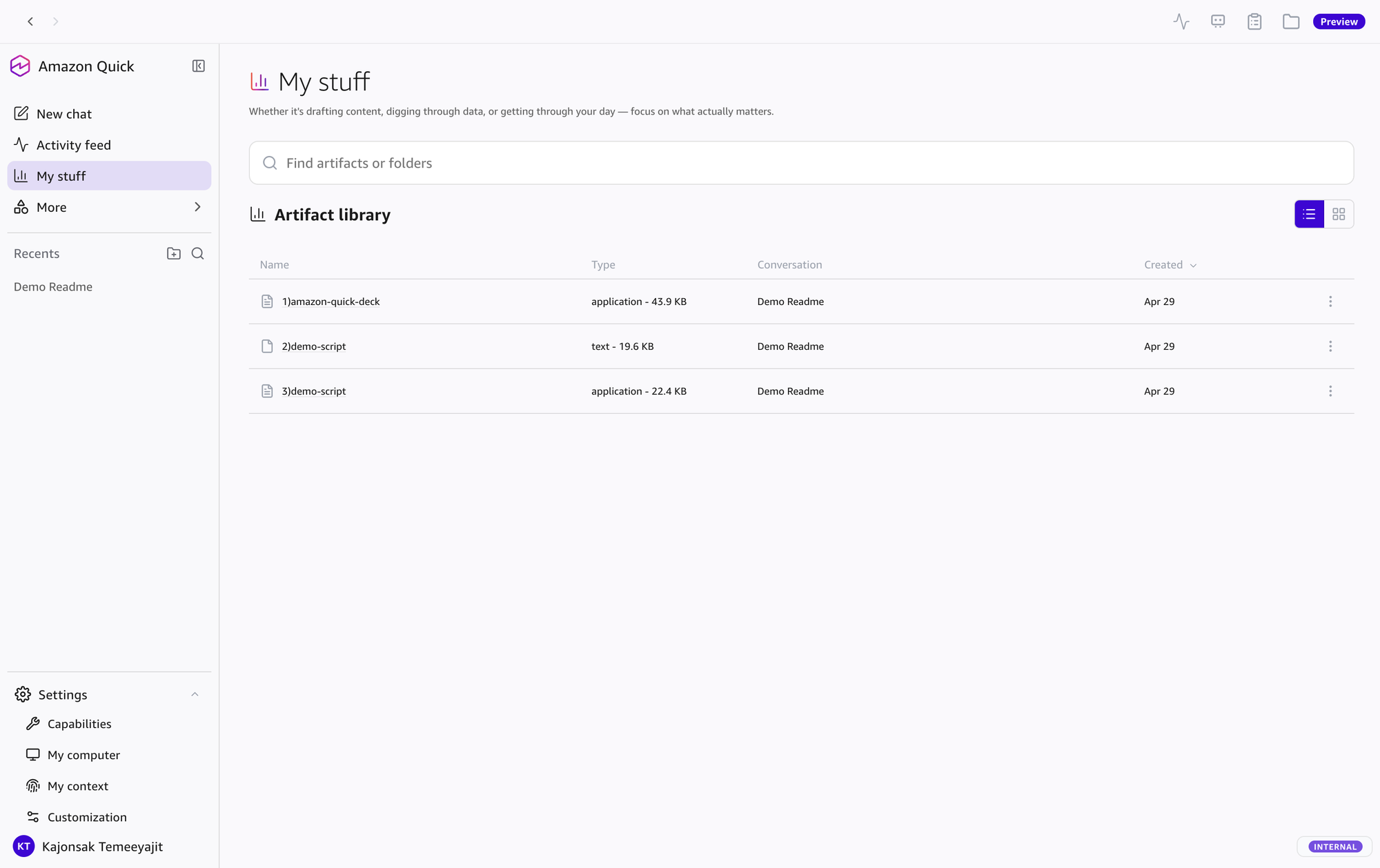
"My stuff" — Artifact Library:

My stuff — Artifact Library
Sidebar → My stuff
  • Search — Search artifacts or folders
  • List/Grid view — Toggle between list and grid view
  • Columns — Name, Type (application/text/image), Conversation (source), Created (time)
  • Actions (⋮) — Manage each file (download, open, delete)
  • Settings (expandable) — In the earlier build shown here: 4 pages (Capabilities, My computer, My context, Customization). In the current app, skills, agents, folders, and connectors are under Customize (Skills, Agents, Knowledge, Connectors tabs); Settings keeps app options such as the Advanced tab.
  • User Profile — Shows user name at the bottom
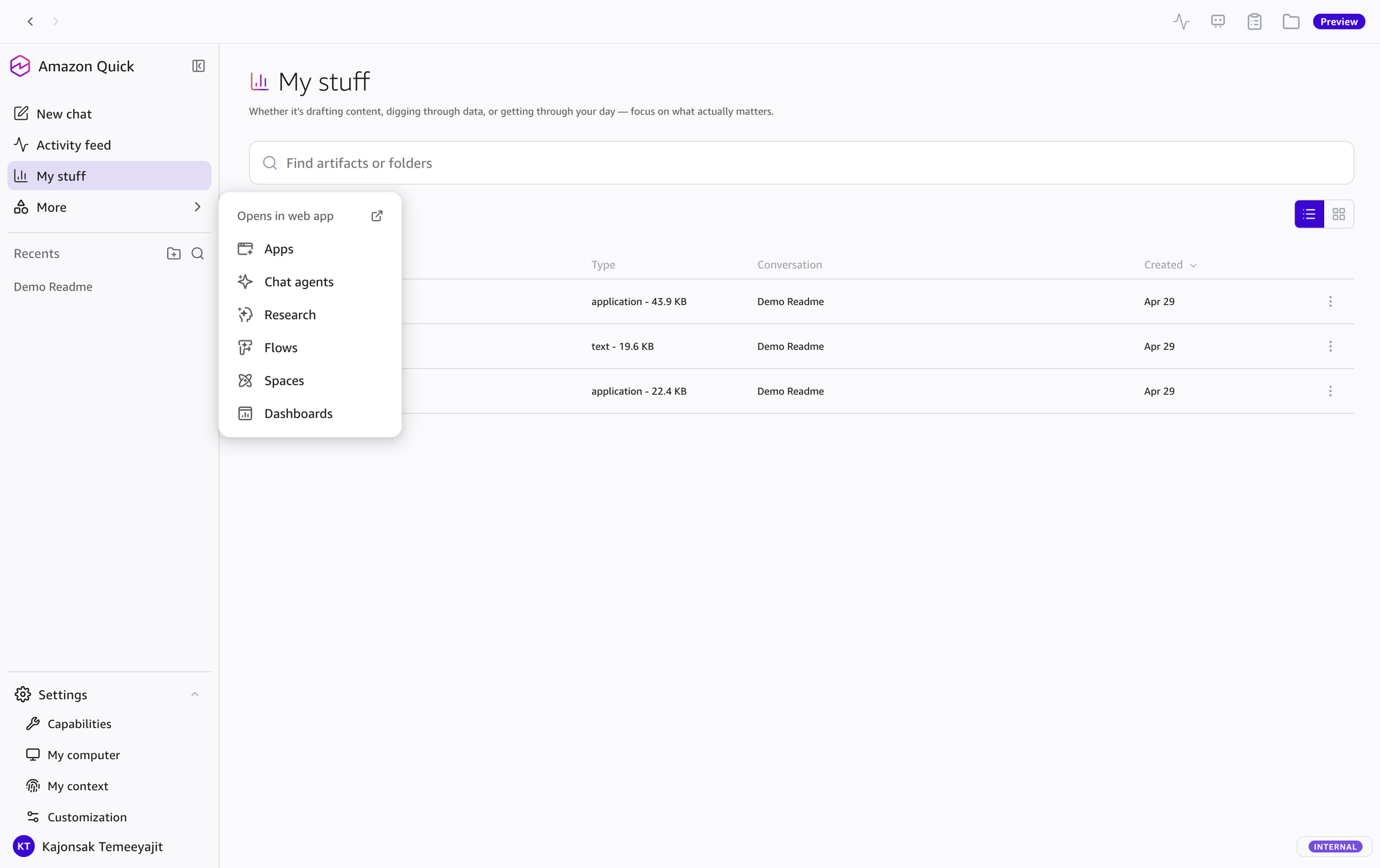
More menu — Opens in web app
Sidebar → More (dropdown)

"More" dropdown items (Opens in web app):

  • Apps — Quick Web applications
  • Chat agents — AI agents on web platform
  • Research — Deep research on web
  • Flows — Automated workflows
  • Spaces — Collaborative spaces (in the current app, Spaces is in the left navigation, where you can also create one)
  • Dashboards — Data dashboards

User Profile (click name at bottom of Sidebar):
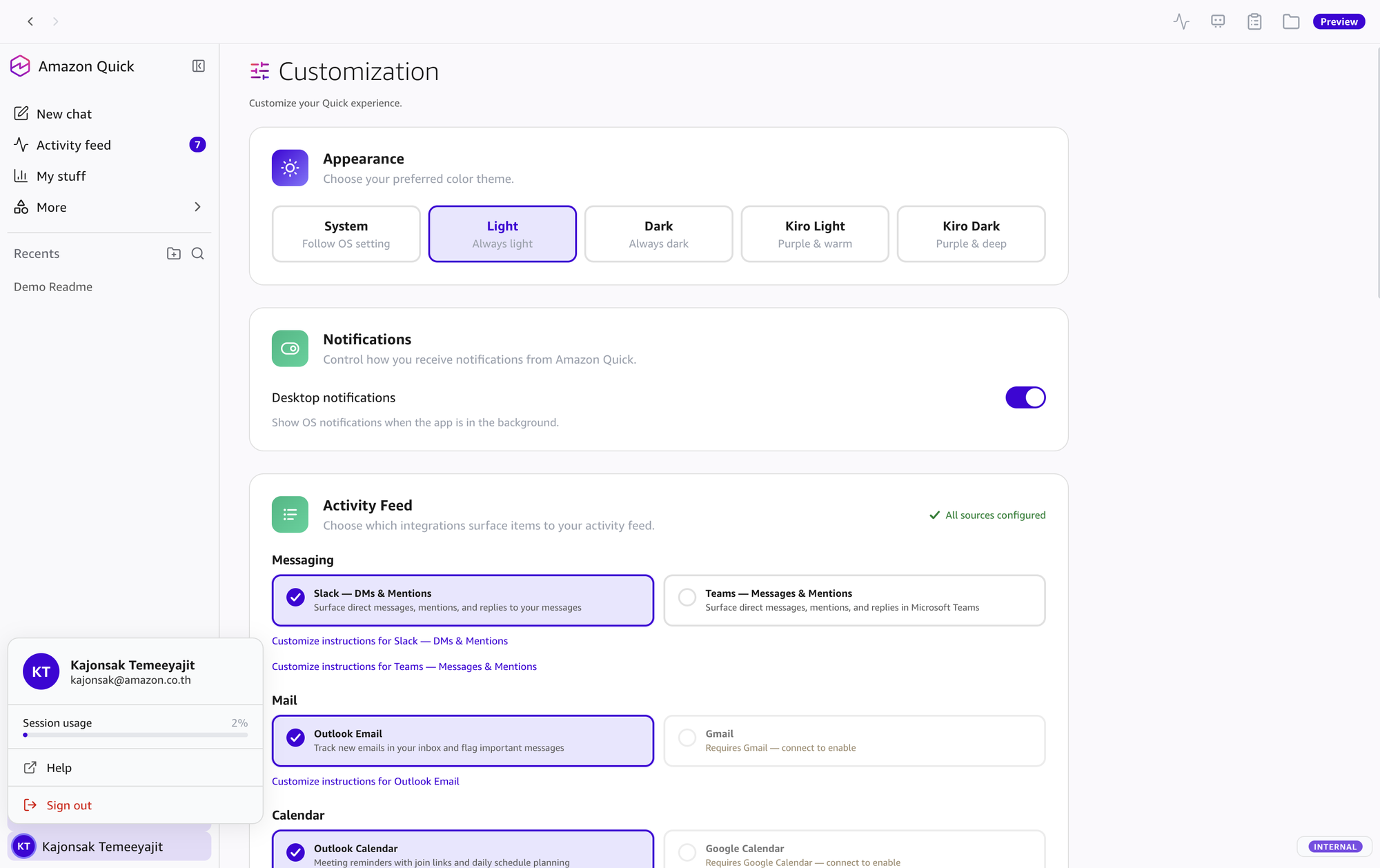
User Profile popover
Sidebar → User Profile
  • User info — Name, email, organization
  • Sign out / Switch — Sign out or switch account

The top-right bar has icon buttons to open panels:

  • Activity Monitor — Icon in the earlier build; agent activity and KPIs are now in Mission Control
  • Feed — Activity feed panel
  • Mission Control — Agent runs, pending inputs, and routines (shown as "Agents / Scheduled Tasks" in the earlier build)
  • Tasks — Active background tasks
  • All Data & Apps — Spaces, local folders, and skills available to the current conversation
  • Preview — Badge seen in the earlier preview build. The desktop app is generally available since 9 Sep 2026.
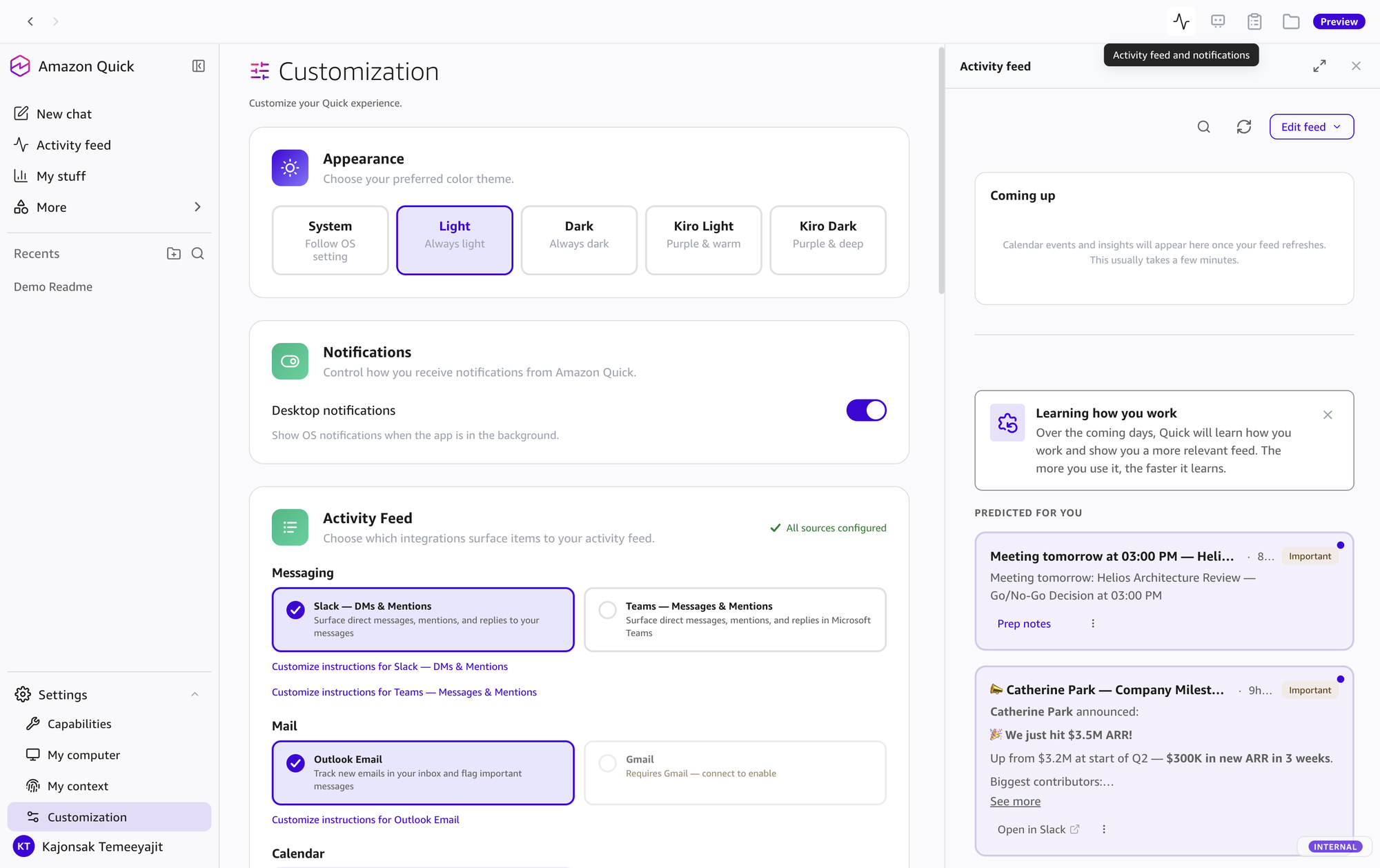
Top-right panel: Activity Feed
Activity Feed Panel
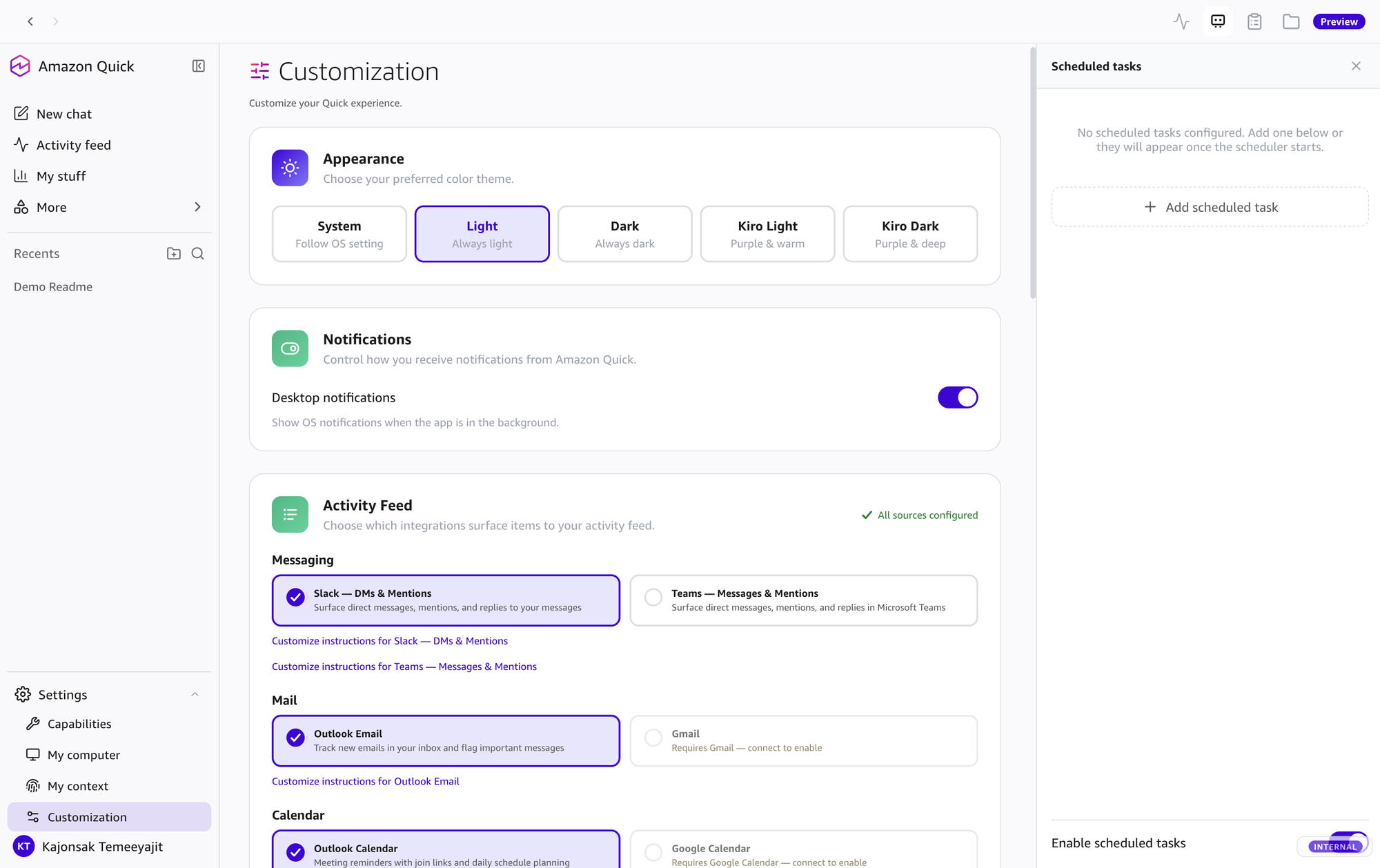
Top-right panel: Scheduled Tasks (earlier build; now Mission Control)
Scheduled Tasks Panel (now Mission Control)
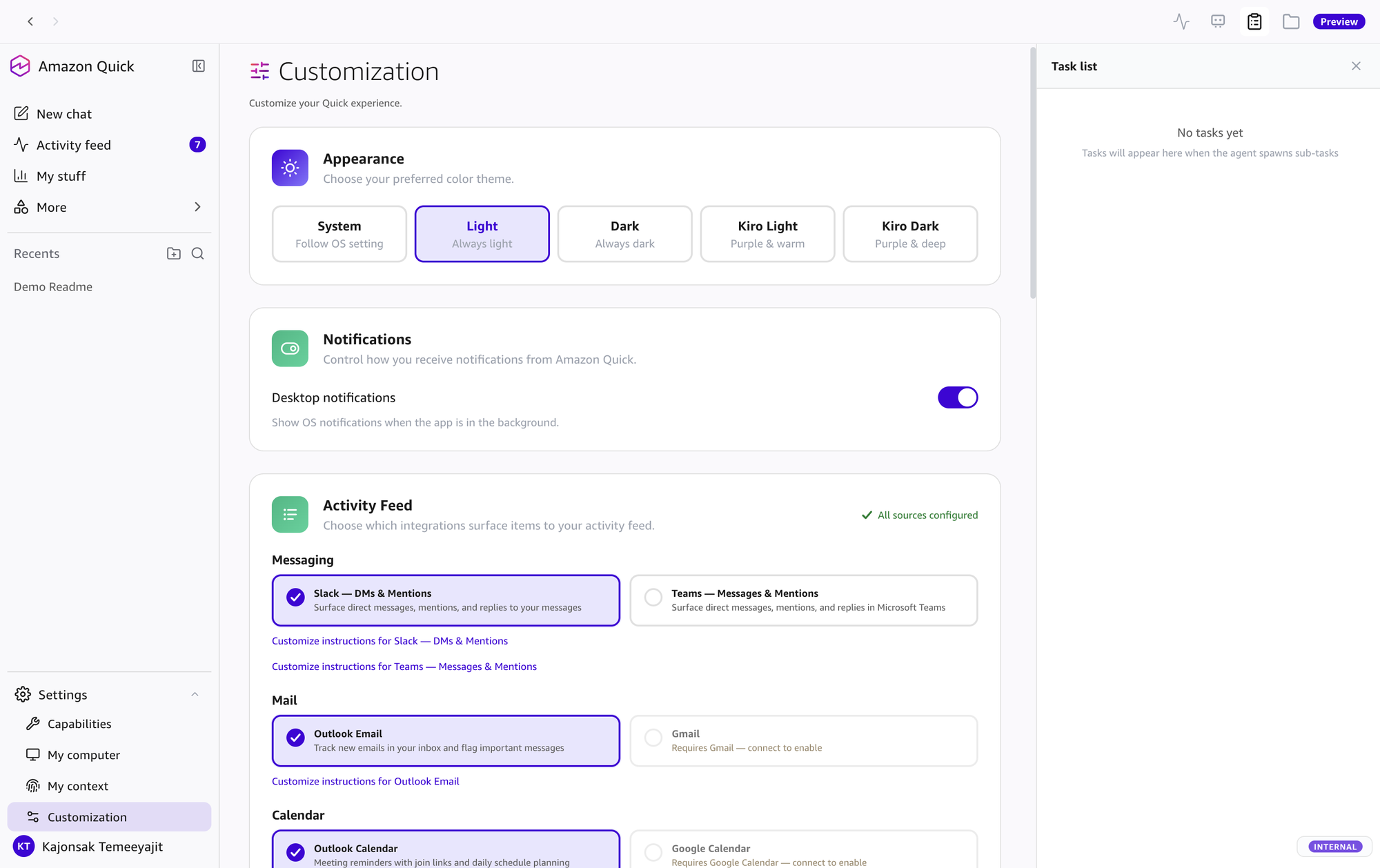
Top-right panel: Task List
Task List Panel
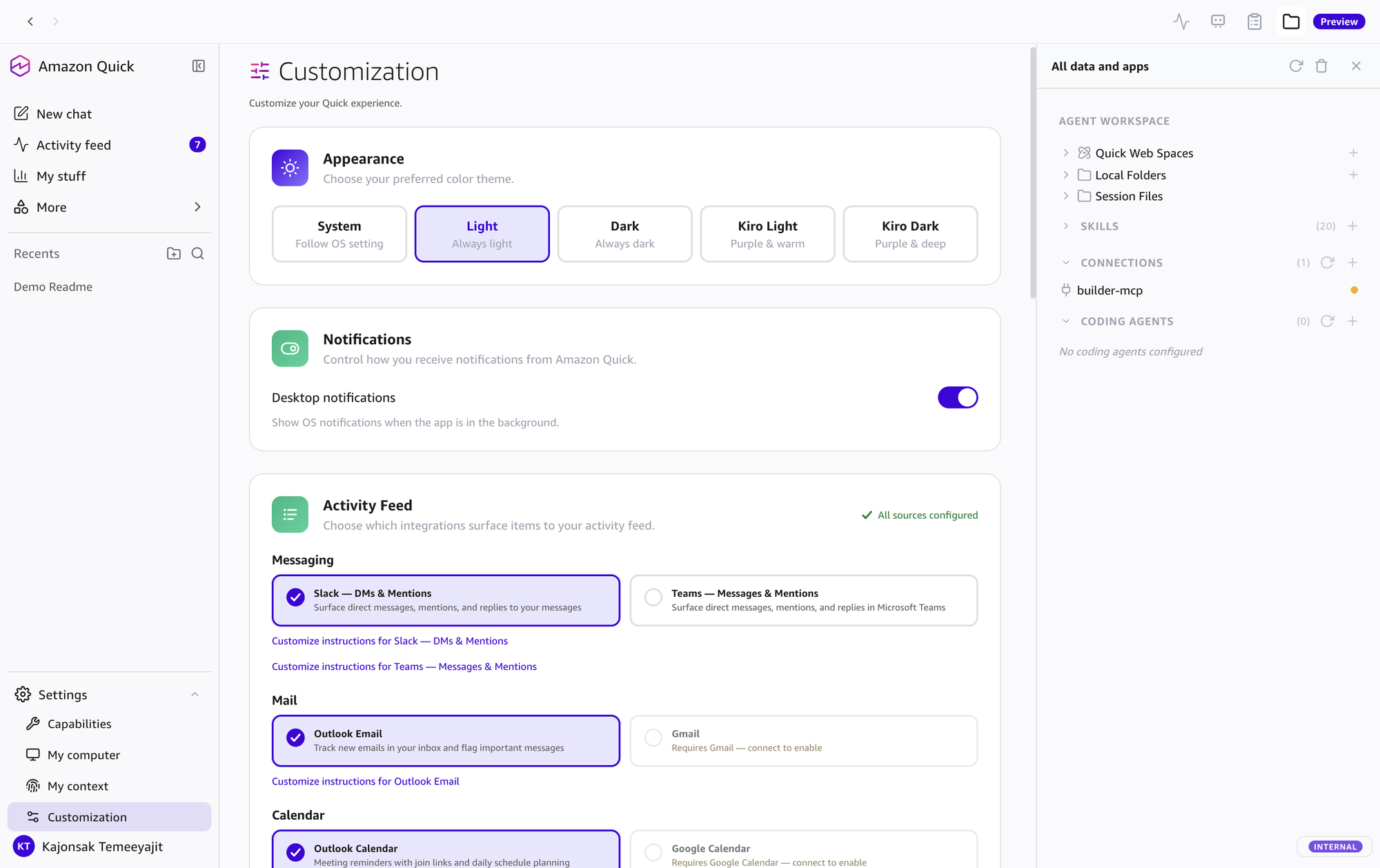
Top-right panel: All Data & Apps
All Data & Apps Panel

The center area displays conversations and content:

  • AI Responses — Messages from "Quick" with rich formatting, code blocks, tables
  • User Messages — User messages (dark bubbles)
  • Inline Artifacts — HTML visualizations, charts, dashboards rendered inline
  • Status Indicators — "Loaded 1 skill, used 2 tools, 2 failed" status display
  • Code Execution — "Ran 3 code blocks" (collapsible)

The input bar at the bottom:

  • "Quick ∨" — Agent switcher: choose the agent that handles the conversation
  • "New conversation" — Start new conversation button (top-right)
  • Text Input — "Ask a question or type @ to mention an agent..."
  • "+" Button — Attach Spaces, Folders, Upload files
  • "Smart ∨" — Response preferences: choose Fast, Balanced, or Smart and set thinking effort
  • Mic Button — Voice input in the earlier build (not described in current docs)

Note: Text at the bottom "Usage is subject to AWS Responsible AI Policy" links to AWS policy

Session tabs show documents and artifacts alongside the conversation. You can view and edit a rendered document, use selection mode to add text, images, and tables as context, and open, download, add to a space, share, or open the document in chat. Multiple documents can stay open as tabs at once. (Working with chat)

Clicking the icon in the Top Bar opens the All data and apps panel:

All Data & Apps Panel
Top Bar → All Data & Apps

This screenshot is from an earlier build. In the current app, All data and apps shows the spaces, local folders, and skills available to the current conversation. Manage connectors in Customize > Connectors and agent KPIs in Mission Control. (Working with chat)
2. Buttons & Controls Reference

Every button in the application with its function and usage

Chat Input Controls

Icon Button Description (EN) Description (Detail)
+ (Attach) Open attachment menu: Spaces, Folders, Upload files Open attachment menu: Spaces, Folders, Upload files
Spaces Attach Spaces to the conversation for context Attach Spaces to the conversation for AI context access
Choose a Folder Grant/revoke file access to the AI Grant/revoke AI read/write permission for folders
Upload Files Attach files directly to the conversation Attach files directly to conversation (PDF, images, docs, etc.)
Web Search Toggle web search on/off for the next query Toggle web search on/off for next query
"Quick ∨" / "Smart ∨" Agent switcher / Response preferences — Fast (), Balanced (), Smart () Choose the agent that handles the conversation, then choose Fast, Balanced, or Smart and set thinking effort
Mic (Orange) Voice input (earlier build) Voice input is not described in current docs; check the current app
@ Mention Type @ to mention an agent (Kiro, Claude Code, etc.) Type @ to invoke an external agent (Kiro, Claude Code)
New Conversation Start a fresh conversation (top-right of input area) Start a new conversation (top-right of input area)

Top Bar Panel Buttons

Icon Button Description Description
Activity Monitor Icon in the earlier build; in the current app, view agent activity, KPIs, and performance metrics in Mission Control An icon in the earlier build; in the current app, view agent activity, KPIs, and performance metrics in Mission Control.
Feed Open the Activity Feed panel Open Activity Feed panel
Mission Control Monitor agent runs, unblock agents, and manage routines Manage routines and agent runs (was "Agents / Scheduled Tasks" in the earlier build)
Tasks View active background tasks & their progress View active background tasks
All Data & Apps Resources for the current conversation Show the spaces, local folders, and skills available to the current conversation so you can add or adjust the resources the agent uses (manage connectors in Customize > Connectors)

Session Tab Controls

Icon Button Description Description
Selection mode Select text, images, and tables and add them as context for your next prompt Select text, images, and tables and add them as context for your next prompt
Open Open the document Open the document
Download Download the document Download the document
Add to a space Add the document to a space Add the document to a space
Share Share the document Share the document
Open in chat Open the document in chat Open the document in chat

Model Modes

Mode Best For Description Thinking
Fast Quick questions, simple tasks, everyday use Optimized for everyday tasks with the lowest latency; consumes agent hours at the lowest rate. —
Balanced Most tasks — balance of quality and speed Balance of quality and speed. Good for most tasks. Off / Low / Medium / High
Smart Complex analysis, nuanced writing, multi-step work Highest quality. Good for complex analysis and writing. Off / Low / Medium / High

Thinking effort: Set Off, Low, Medium, or High on Balanced and Smart; Fast responds without extended reasoning. Higher effort suits complex code, strategic planning, and analysis. (Working with chat)

Keyboard Shortcuts

Shortcut Action Description
Configured in Settings > General > Keyboard shortcuts Send message Send message (you can record a custom key combination)
Ctrl+B (Windows) / Cmd+B (macOS) Send to background Send the current task to the background

3. Settings & Configuration

Settings menus as shown in the earlier build (Sidebar → Settings)

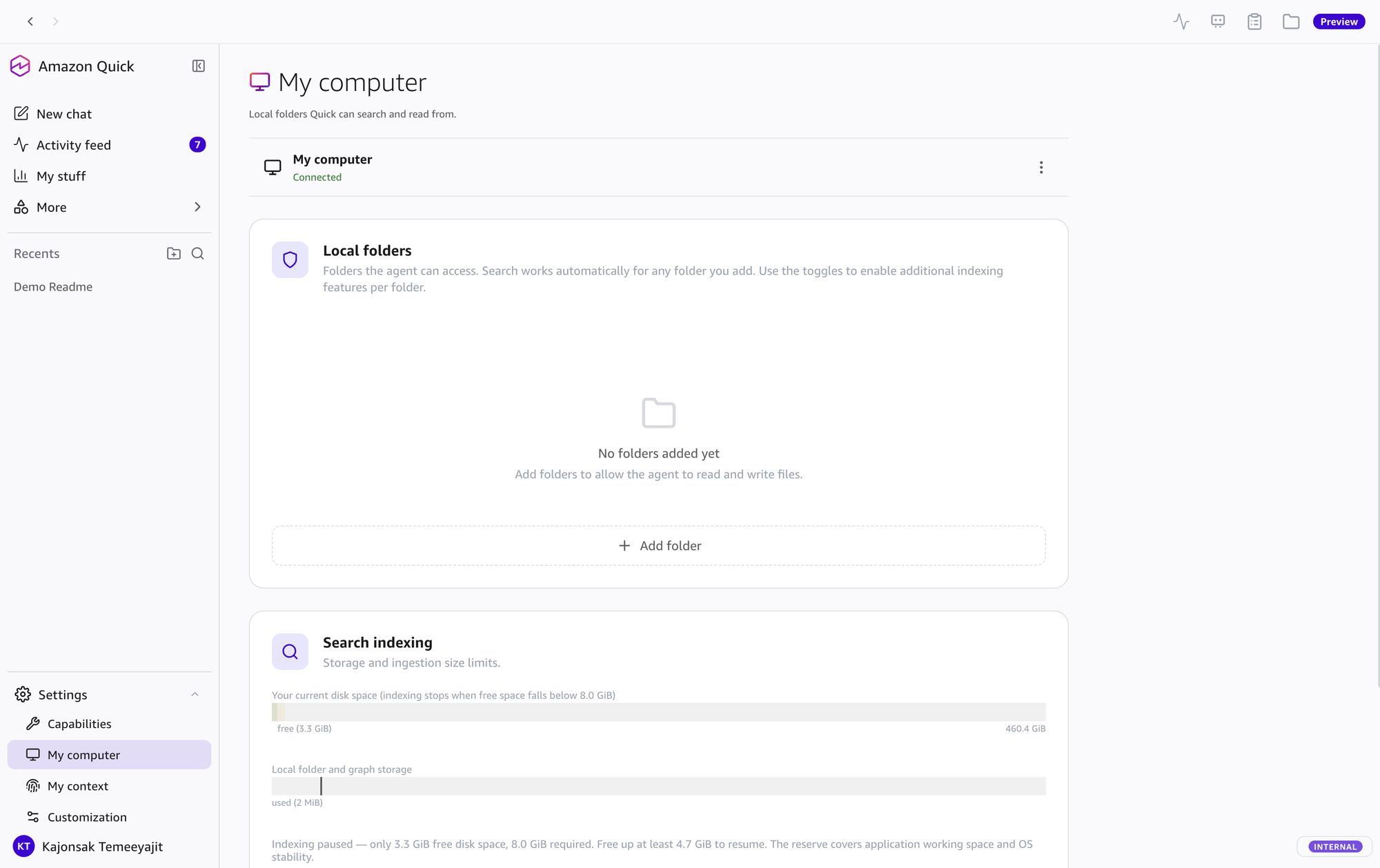
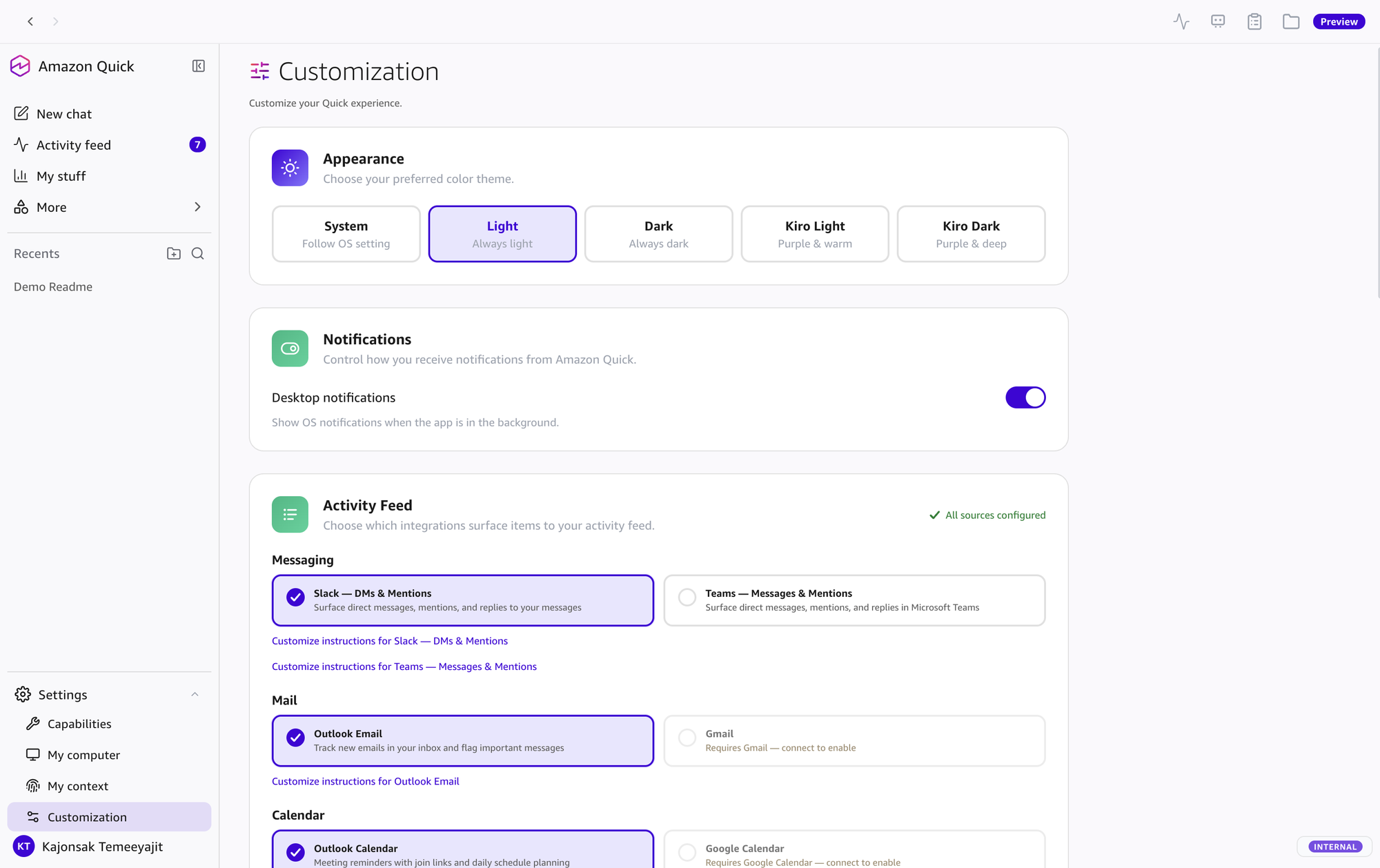
Current menu names (checked 17 Oct 2026): Images are from an earlier build; menu names changed. In the current app use Customize > Connectors (connections, MCP servers, coding agents, system tools), Customize > Skills, Customize > Agents, Customize > Knowledge (local folders and indexing, formerly My computer), and Mission Control in the top bar for routines (formerly Scheduled Tasks). My context still holds the knowledge graph and memory.

Sources: Connectors · Skills · Agents · Knowledge · Mission Control

Amazon Quick Desktop - Settings → Capabilities
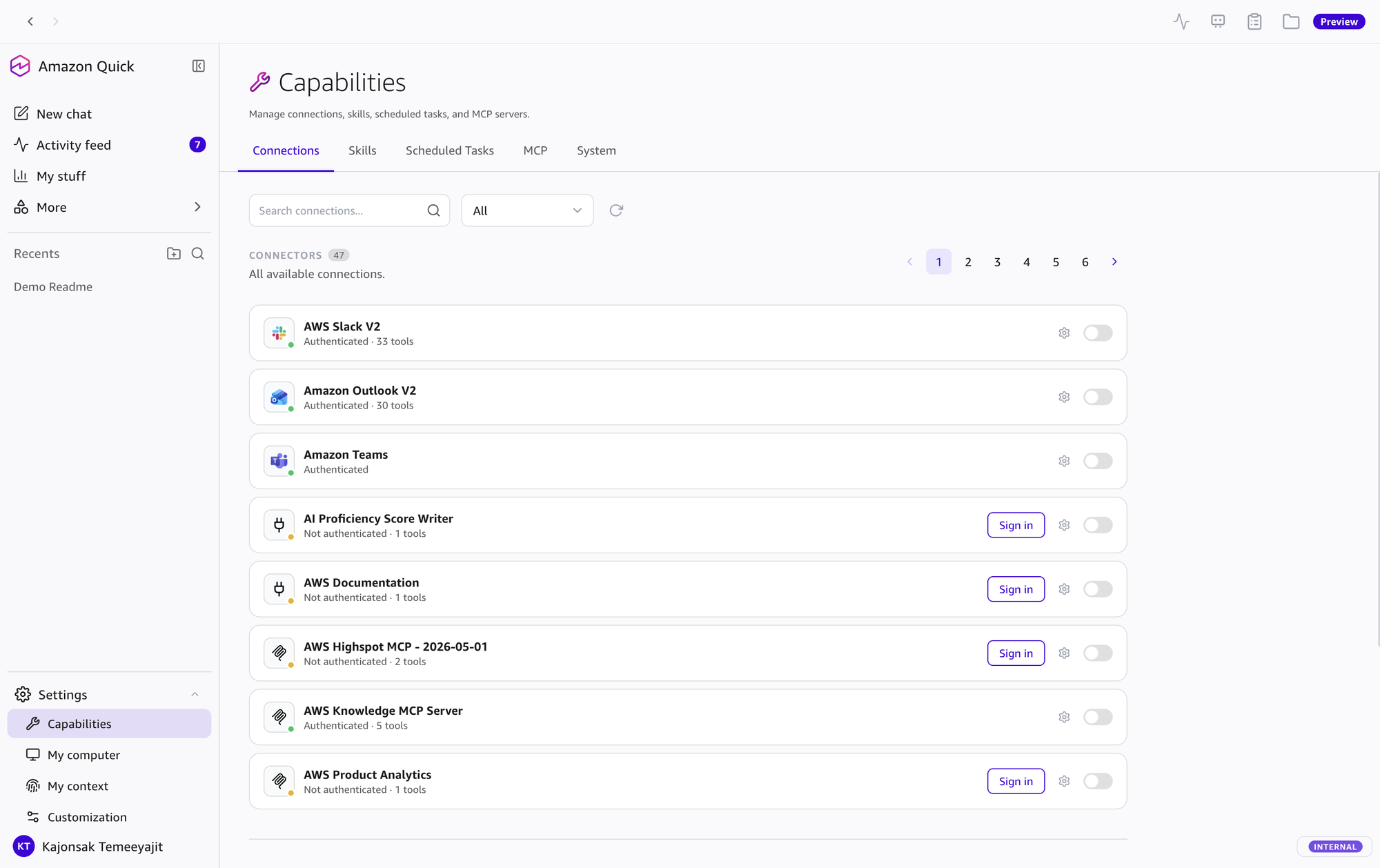
Settings → Capabilities → Connections
Capabilities
My Computer
My Context
Customization

Capabilities

Earlier build: service connections, skills, scheduled tasks, MCP servers, and system tools. Now: Customize > Connectors and Customize > Skills; schedules are routines in Mission Control.

Connections (Main Tab)

Connect services: Slack, Outlook, Teams, Gmail, Google Calendar, Google Meet (sign-in method per connector is listed in Section 5). Click each card to connect/disconnect or manage tools.

Capabilities → Connections

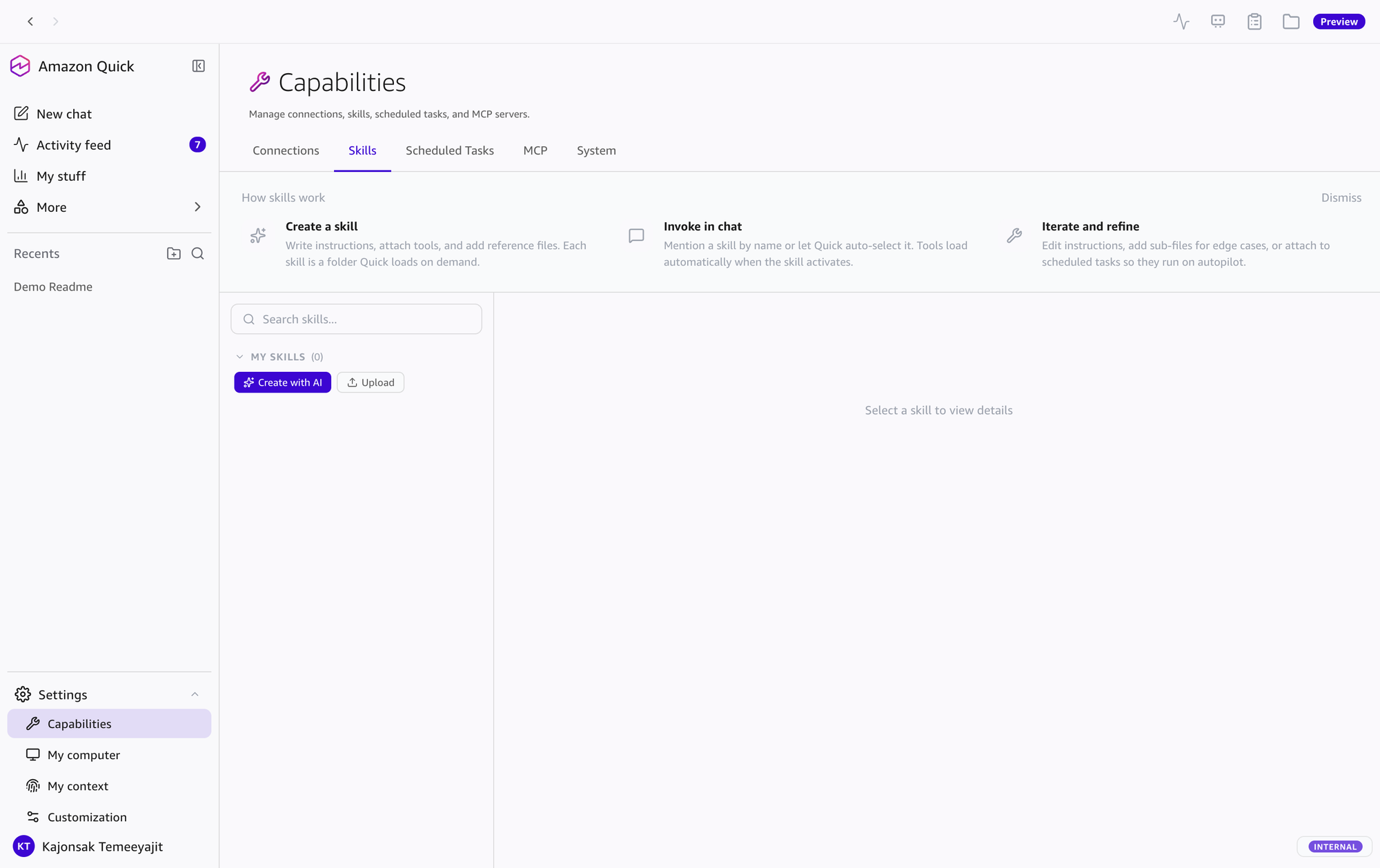
Skills (Tab) — now Customize > Skills

View and manage skills — system skills (documents, presentations, spreadsheets, web browsing, code execution, and more) and your own. Create with Customize > Skills > Create > From chat, From file, or From folder; then Try it, Publish, and Share. System skills can be turned on or off.

Capabilities → Skills

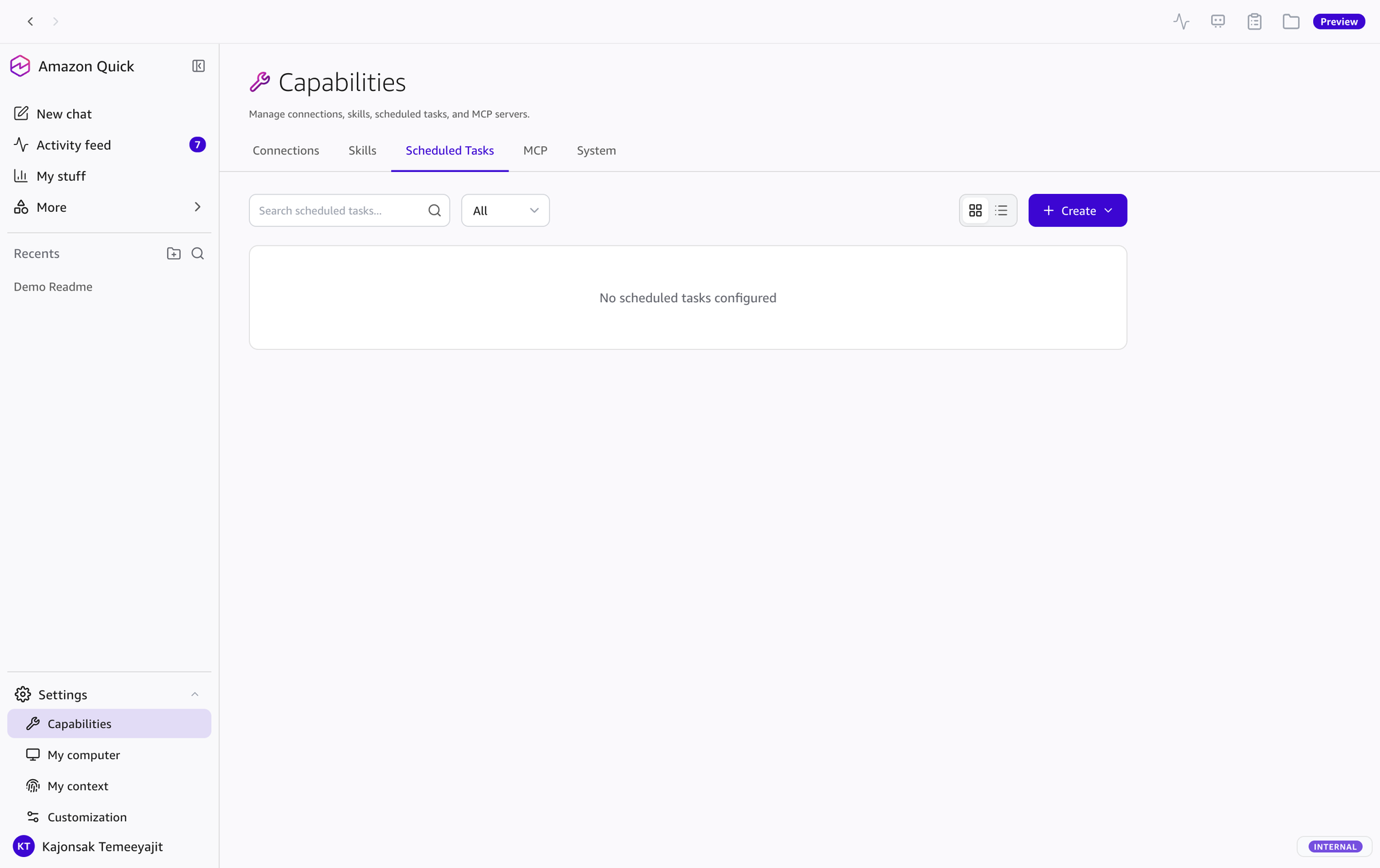
Scheduled Tasks (earlier build) — now routines in Mission Control

Recurring work such as a morning brief or channel monitoring is now a routine: open Mission Control from the top bar > Create, then set how often it repeats, the agent, capabilities, instructions, and model. Routines run in the cloud; steps that need local files, browser automation, or local code need the computer on with the app connected.

Capabilities → Scheduled Tasks (earlier build)

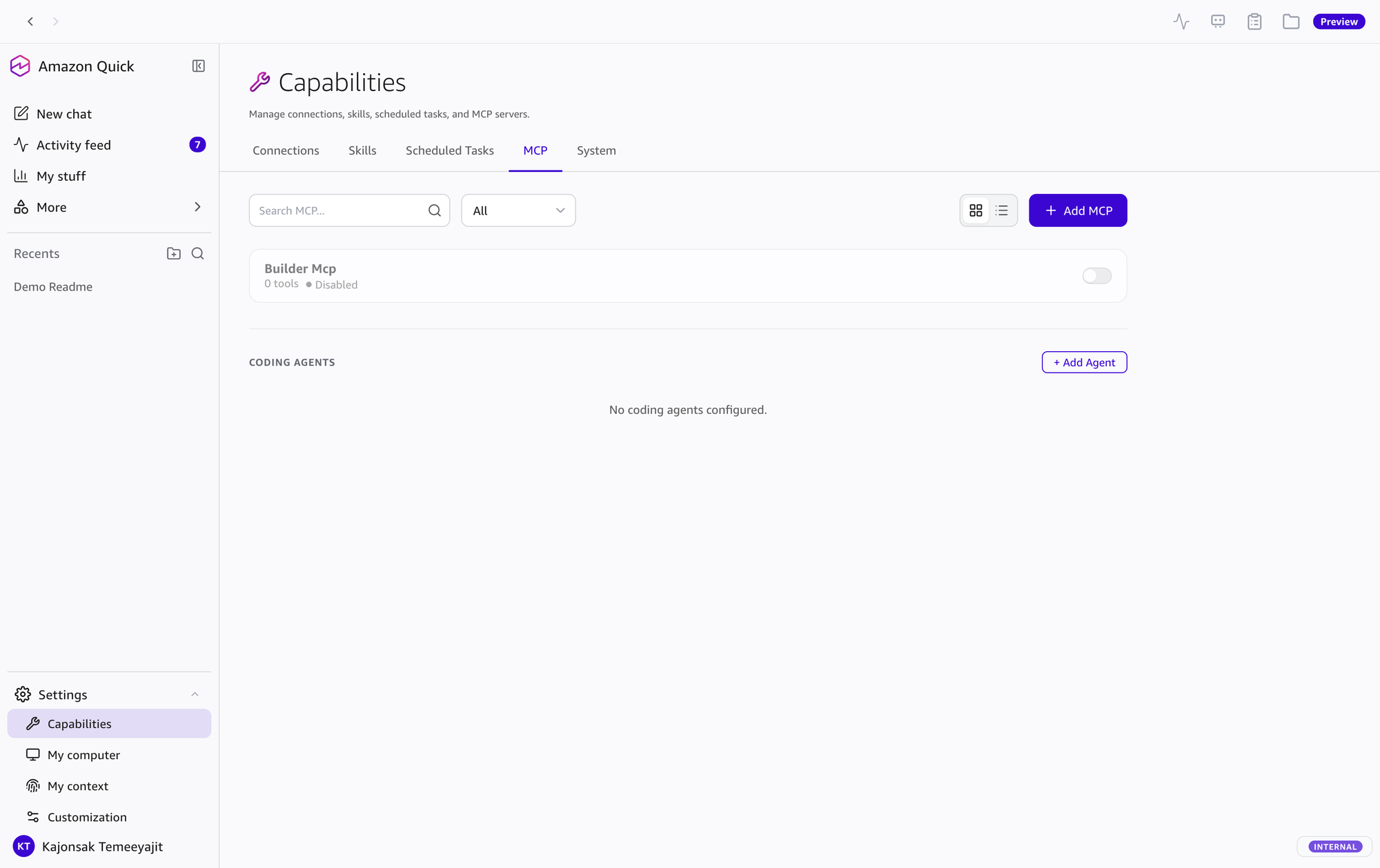
MCP (Tab) — now Customize > Connectors > Create

Add custom MCP servers: Local (command on your machine), Remote (hosted server), or Import from Kiro, Claude Code, AIM, Antigravity, or QuickWork exports. Add coding agents (Kiro, Claude Code) with Create > Coding agent.

Capabilities → MCP

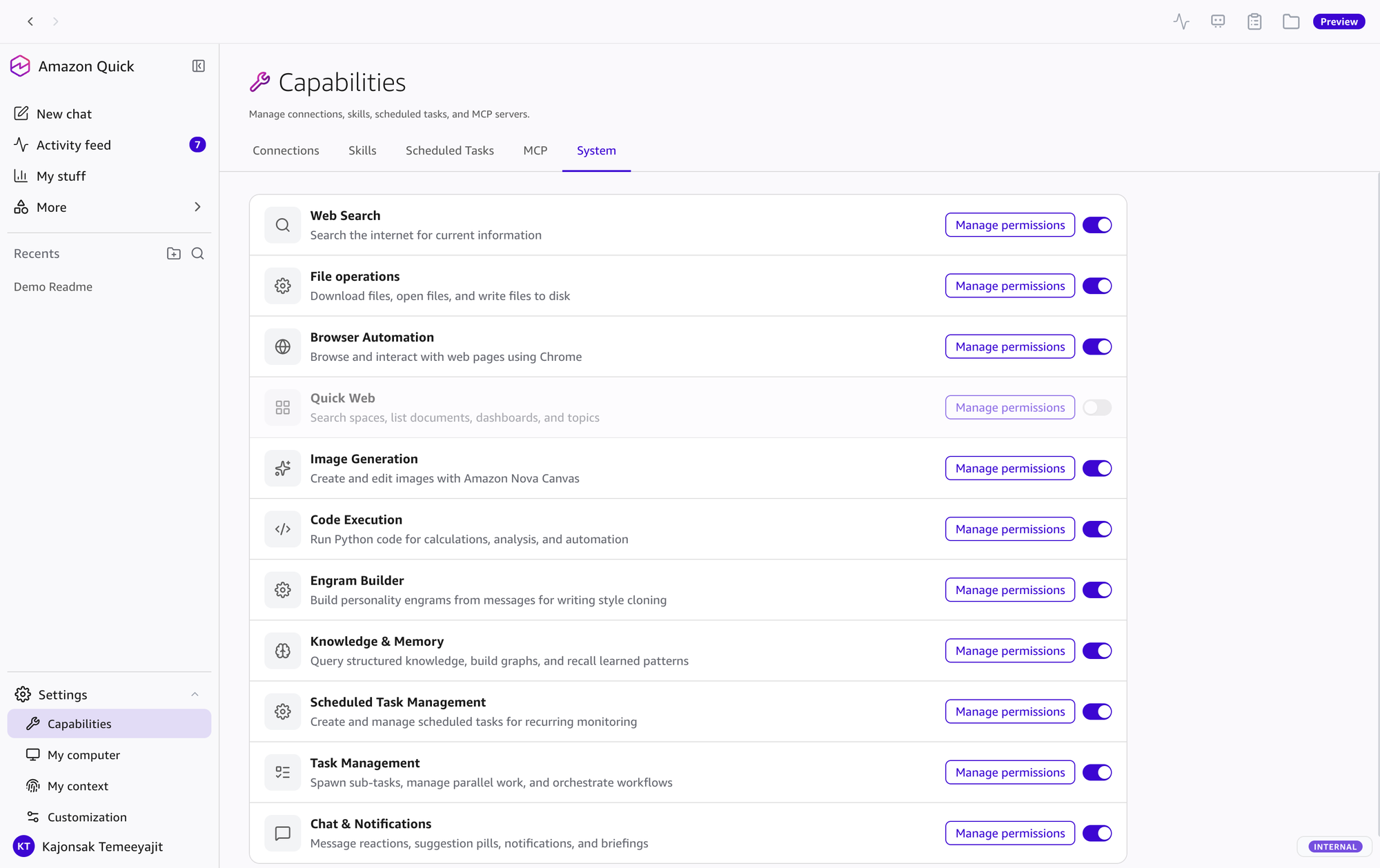
System (Tab)

Manage system-level tools and Quick Web connection status

Capabilities → System

4. Complete Feature Set

All Amazon Quick Desktop capabilities organized by category

AI Conversation & Intelligence

Conversational AI

Use chat to ask questions, get help with tasks, analyze files, create documents and visualizations, and work with connected services through natural language.

Long-term Memory

Retains preferences and workflows in long-term memory to provide more contextual responses. Review and manage it in My context.

Knowledge Graph

Extracts entities (people, projects, organizations, topics, events, decisions) from documents, Slack, Email, Calendar. Query with natural language.

Semantic Search (RAG)

Search indexed files by keyword or meaning and cite the content found.

Voice Input

Not described in current AWS documentation. Check availability and options in the current app.

Web Search

Search the internet — AI summarizes results, fetches full content from URLs, provides inline citations.

Content Creation & Documents

Presentations (PPTX)

Create PowerPoint presentations — plan → preview → generate. Live slide preview, edit slide by slide, supports templates & custom themes.

Word Documents (DOCX)

Create and edit Word documents — formatting, tables, headers, styles, images. Live preview during creation.

Spreadsheets (XLSX/CSV)

Create Excel with charts, formulas, conditional formatting. Analyze data with natural language.

PDF Documents

Create PDF reports — custom layouts, charts, images, multi-page, professional formatting.

Interactive Visualizations

Create interactive data visualizations from chat and display them as artifacts.

Image Generation

AI-powered image creation — generate, edit, remove background, outpaint, image variation. Text-to-image.

Automation & Background Tasks

Routines (Agents)

Recurring automations — morning brief, monitor Slack, periodic checks. Create in Mission Control (top bar) > Create, or ask in chat. Routines run in the cloud; results go to your feed or a connected app.

Multi-Agent (Background Tasks)

Spawn parallel workers — research multiple sources, analyze multiple files, pipeline orchestration, task groups with progress tracking.

Activity Feed & Notifications

Surface contextual suggestions, briefing summaries on the Home screen, and desktop notifications such as task completion. Routine results go to the activity feed.

Browser Automation

Browser Automation can launch a browser, navigate, fill forms, take screenshots, and extract text. You can choose System default, Chrome, Edge, Brave, or Firefox. The default mode opens a separate browser instance with a copy of your profile; Use my existing browser connects to your running browser, where your logins, cookies, and extensions are available (System tools).

Deep Research

Run structured, multi-step research across multiple sources with a research plan card, live progress, and a cited report.

Screenshots & media transcription

Browser Automation can take screenshots, and Transcription converts audio and video files, including screen recordings, to text.

Developer & Power User Tools

Code Execution (Python)

Run Python in a sandbox for data analysis, calculations, file processing, chart generation, and automation, with a persistent namespace within the conversation and pre-installed packages.

Explainability

Get a structured account of how Quick reached an answer: assumptions, sources, calculations, and limitations.

Custom MCP Servers

Add MCP servers using the Local, Import, or Remote (HTTP) connection types supported by Quick, in Customize > Connectors.

Coding agents (Kiro, Claude Code)

Delegate coding tasks to external agents — @mention in chat, stream progress, receive results back.

Skills System

Create reusable skills (Customize > Skills > Create > From chat / From file / From folder) — turn multi-step workflows into reusable instructions. Draft and published versions; Try it, Publish, Share.

File Operations

Read, write, and search files in granted folders, open local files, and download files from URLs.

Organization & Utilities

Conversation Management

Manage conversations with folders, pinning, search, archive, and threads. History is kept in your Amazon Quick account across devices.

Transcription

Convert audio and video files such as mp3, mp4, wav, flac, m4a, or ogg to text so Quick can summarize, quote, or answer questions about the content.

Export conversation

Export a conversation as Markdown or PDF with /export.

5. Supported Integrations

External services that can be connected — configure at Customize > Connectors (Settings → Capabilities → Connections in the earlier build)

Icon Integration Capabilities Setup
Slack Send messages, manage channels, search content, and interact with users and user groups (docs) Default OAuth app / Custom OAuth app / Bearer Token
Outlook Email, calendar, and contact APIs through natural language (docs) Default OAuth app / Custom OAuth app / Service-to-Service OAuth
Microsoft Teams Send messages, manage channels, schedule meetings, and manage team collaboration (docs) Default OAuth app / Custom OAuth app / Service-to-Service OAuth
Gmail Read and send emails, manage labels and drafts, organize threads, and search contacts (docs) Default OAuth app / Custom OAuth app
Google Calendar Create and update events, check availability, manage calendars, and organize attendees (docs) Default OAuth app / Custom OAuth app
Google Meet Schedule meetings, view conference records, retrieve transcripts and recordings, and manage meeting spaces (docs) Default OAuth app / Custom OAuth app
Zoom Create and manage meetings, access recordings and meeting summaries, view webinar details, and search contacts (docs) Default OAuth app / Custom OAuth app
Spaces Attach a space to use its files, datasets, dashboards, topics, and actions as scoped context (docs) Chat / All data and apps
Cloud connectors Outlook, SharePoint, OneDrive, Slack, Jira, Asana, Airtable, Salesforce, and remote MCP; let agents access data and act on your behalf under configured permissions (docs) Customize > Connectors
Custom MCP Servers Your own tools — local command or remote server; import from Kiro, Claude Code, AIM, Antigravity, QuickWork exports Customize > Connectors
Coding agents External coding agents (Kiro, Claude Code) — @mention to delegate Customize > Connectors

Actions such as sending email or messages: Quick drafts the action and follows your tool permissions. By default, write tasks are set to Ask Each Time (read tasks Always Allow), so Quick pauses for your approval before it sends or changes anything. Connector owners can also force Always Ask or disable a tool. (Connectors — Managing tool permissions)

Architecture — Data Privacy: Amazon Quick runs in the cloud. Conversations, memory, knowledge graph, agent-produced files (Library), and the search index are kept per user in your Amazon Quick account, isolated from other users. The desktop app stores only app configuration, folder permissions, and locally configured MCP and coding-agent servers in ~/.quickwork/ (macOS) or %USERPROFILE%\.quickwork\ (Windows). Sign-in tokens are held separately in the operating system credential vault. Turning on full-content search or knowledge graph extraction for a folder uploads that folder's files. (Security, privacy, and architecture)

Web vs Desktop — Feature Comparison

The current AWS documentation does not publish a web vs desktop comparison table, so the old checkmark table was removed on 17 Oct 2026. Summary from current docs:

Amazon Quick shares conversations, memory, knowledge graph, and Library files across web, mobile, and desktop. The desktop app adds granted local folders, browser automation in your own browser, local code execution, and locally configured MCP servers and coding agents. Cloud connectors, including remote MCP servers, work across devices; local connectors require the host computer to be on and connected. A published agent can also be used from Quick on the web. (What is Amazon Quick on desktop?, Connectors, Agents)

Security & Compliance

Per Compliance validation for Amazon Quick (checked 17 Oct 2026), Amazon Quick across its web, desktop, and mobile clients is in scope for the programs below. In-scope status does not make your own workloads compliant (shared responsibility model). Confirm current status and authorized Regions on each program's AWS page before relying on it.

Program Status (as the AWS page states it) Details
HIPAAHIPAA Eligible ServiceRequires an AWS Business Associate Addendum (BAA) and your own configuration to handle PHI
FedRAMPIn scopeCheck authorization status and authorized Regions on "AWS services in scope for FedRAMP"
SOC 1, SOC 2, SOC 3In scopeReports available through AWS Artifact
PCI DSS, ISO 9001/27001/27018/27019, BSI C5, HITRUST CSFIn scopeSee the linked compliance page for each program
Data TrainingNeverAWS does not use your conversations, files, or personal context to train models — free or paid
Data StorageAmazon Quick account (cloud)Conversations, memory, knowledge graph, Library, and search index are kept per user in your Amazon Quick account; the device keeps only app configuration, folder permissions, local MCP settings, and sign-in tokens

6. AWS Official References

Links to AWS Official Website and Documentation

Amazon Quick — Product Page

Amazon Quick Desktop product page

aws.amazon.com/quick/desktop

Amazon Quick — User Guide (Docs)

Official documentation: What is Amazon Quick on desktop?

docs.aws.amazon.com/.../what-is-desktop

Amazon Quick — FAQs

Frequently asked questions (General, Features, Desktop, Plans, Getting Started)

aws.amazon.com/quick/faqs

Amazon Quick — Overview

Amazon Quick main product page

aws.amazon.com/quick

Amazon Quick — Pricing

Plans checked 17 Oct 2026: Free $0; Plus $20/user/month billed annually or $25 billed monthly; Max $100/user/month billed annually or $125 billed monthly; Professional $20/user/month + $250/account/month infrastructure fee; Enterprise $40/user/month + $250/account/month infrastructure fee. Desktop on the Free plan: the pricing page lists it, but the FAQ says the desktop app is on Plus, Professional, and Enterprise (new signups get a 30-day Plus trial) — check your plan.

aws.amazon.com/quick/pricing

What's New — Desktop GA

Desktop app generally available on macOS and Windows (Sep 2026), 7 Regions

aws.amazon.com/about-aws/whats-new/2026/09/...

Security, privacy, and architecture

How data is handled, local storage, folder and tool permissions

docs.aws.amazon.com/.../desktop-security

Compliance validation for Amazon Quick

Compliance programs in scope and how to confirm current status

docs.aws.amazon.com/.../sec-compliance

Mission Control, Agents, Skills, Spaces, Knowledge, Connectors

Current desktop menus and how routines run

Mission Control · Agents · Skills · Spaces · Knowledge · Connectors · Getting started

Amazon Bedrock

AWS platform for foundation models (general reference)

docs.aws.amazon.com/bedrock

AWS Data Privacy

Security and privacy policies

aws.amazon.com/compliance/data-privacy

Amazon Nova (AI Models)

Amazon Nova AI models (general reference)

aws.amazon.com/ai/generative-ai/nova

Amazon Transcribe

AWS speech-to-text service (general reference)

aws.amazon.com/transcribe

Additional Resources

Resource Description Link
AWS Responsible AI Policy AI usage policy (shown in-app) aws.amazon.com/.../responsible-ai
MCP Protocol Model Context Protocol spec modelcontextprotocol.io
AWS What's New Latest announcements aws.amazon.com/new
AWS Blog Technical posts & best practices aws.amazon.com/blogs
AWS Training Learning paths & certifications aws.amazon.com/training

Ready to Get Started?

Get started with Amazon Quick Desktop — an AI assistant that works with your files, apps, and context

Learn More on AWS

Amazon Quick 101 — Visual Guide

An interactive 9-page visual guide covering everything from setup to advanced features

Page 1-2

What is Amazon Quick? + Initial setup

Page 3-5

File Search, Data Analysis, Document Creation

Page 6-9

Connectors, Deep Analysis, AI Coding, Getting Started

Open 101 Visual Guide (9 Pages)