คู่มือภาพรวมฟีเจอร์ — อธิบายความสามารถหลัก หน้าจอ และการตั้งค่าที่สำคัญ
สำหรับ AWS Partners, Customers, และ Internal Enablement
ข้อมูลตรวจกับเอกสารทางการของ AWS เมื่อ 17 ต.ค. 2026
แอปเดสก์ท็อปพร้อมใช้งานทั่วไปตั้งแต่ 9 ก.ย. 2026 ใน 7 AWS Regions: US East (N. Virginia), Asia Pacific (Sydney), US West (Oregon), Europe (Ireland), Europe (London), Asia Pacific (Tokyo), Europe (Frankfurt) — ยังไม่มีใน Singapore และ Thailand (What's New, ก.ย. 2026)
สิ่งที่ Amazon Quick Desktop ทำได้ — จาก AWS Official Documentation และ Product Page
เชื่อมต่อ email (Outlook, Gmail), team chat (Slack, Teams), CRM, databases, และไฟล์บนเครื่อง — ถามอะไรก็ได้ Quick ดึงคำตอบจากทุกที่โดยไม่ต้องสลับแอป
Source: aws.amazon.com/quick/desktop
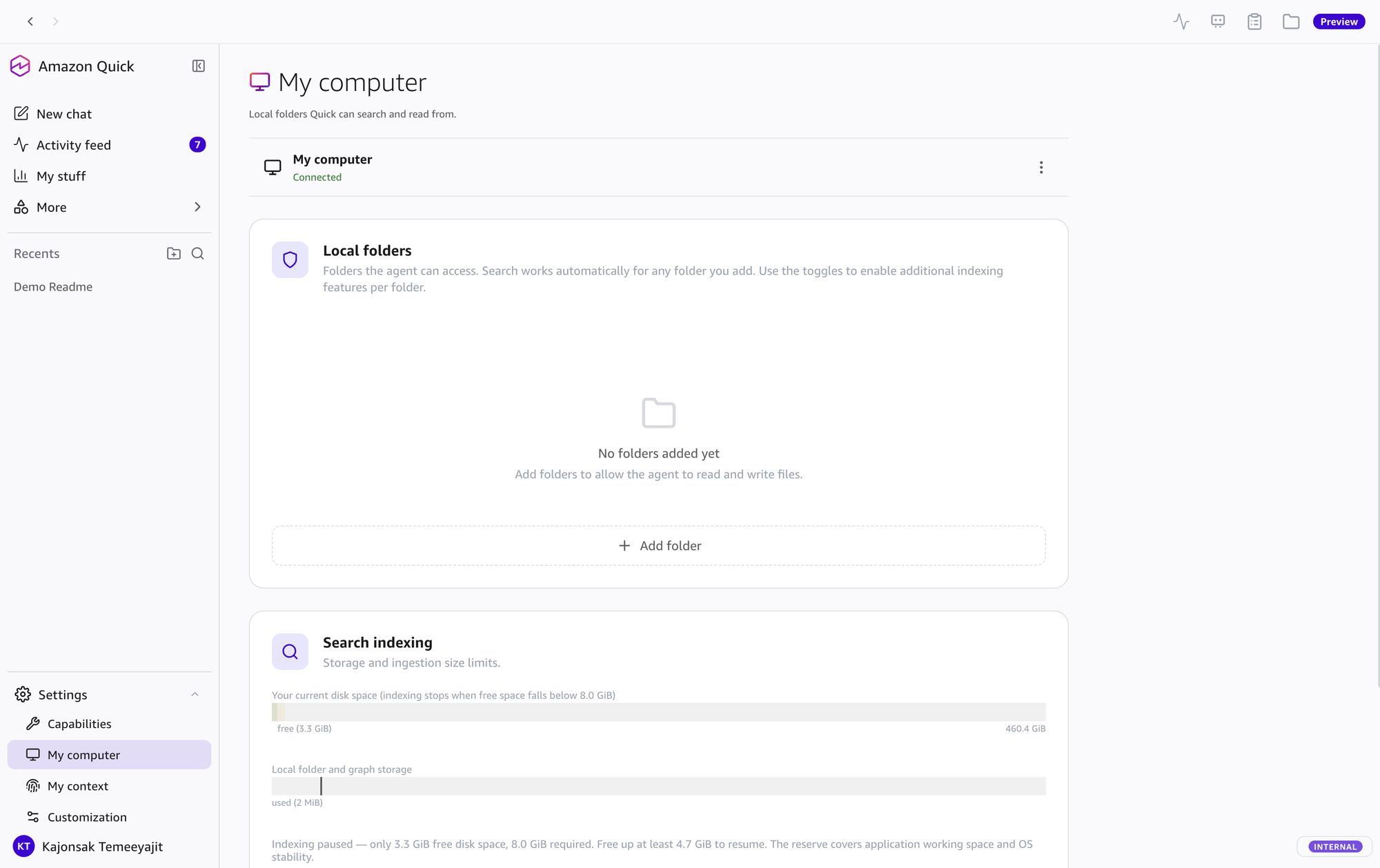
อ่าน, เขียน, ค้นหา, และ index ไฟล์ใน folders ที่อนุญาต (Customize > Knowledge) — การเพิ่ม folder เป็นแค่การให้สิทธิ์เข้าถึง ถ้าเปิด full-content search หรือ knowledge graph extraction ของ folder นั้น ไฟล์จะถูก upload และ index ไว้ในบัญชี Amazon Quick ของคุณ
Source: docs.aws.amazon.com — Knowledge
รวมข้อมูลจาก spreadsheet, Slack thread, email เข้าด้วยกัน สร้างเป็น Word doc, Excel model, หรือ presentation — สิ่งที่เคยใช้เวลาบ่ายๆ ทำเสร็จในบทสนทนาเดียว
Source: aws.amazon.com/quick/desktop
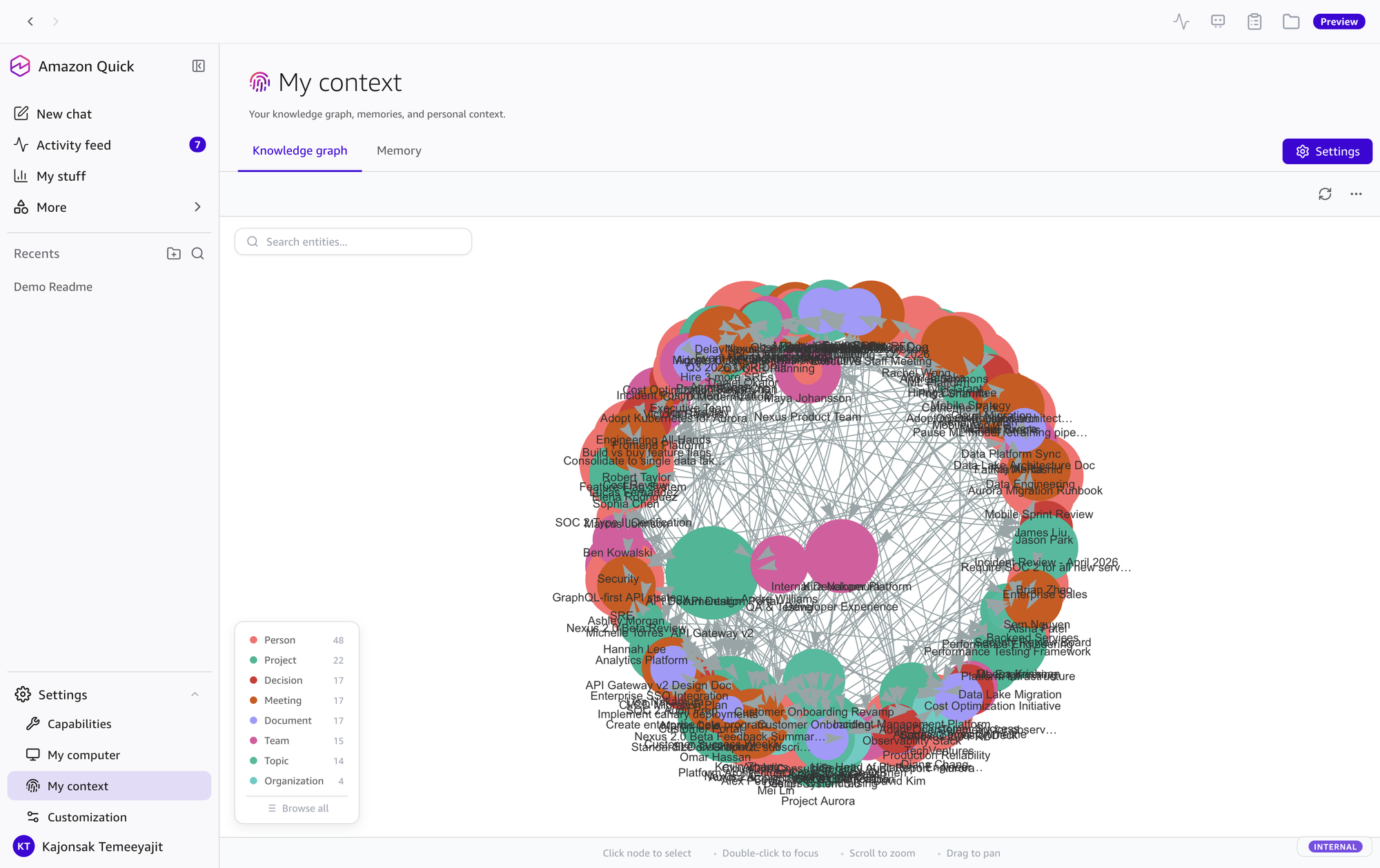
สกัด entities และ relationships จาก Slack, email, calendar, ไฟล์ — สร้าง graph ของคน, ลูกค้า, โปรเจค, events, channels. ยิ่งใช้ยิ่งฉลาด ไม่ต้องอธิบายใหม่ทุกครั้ง
Source: docs.aws.amazon.com — Knowledge graph
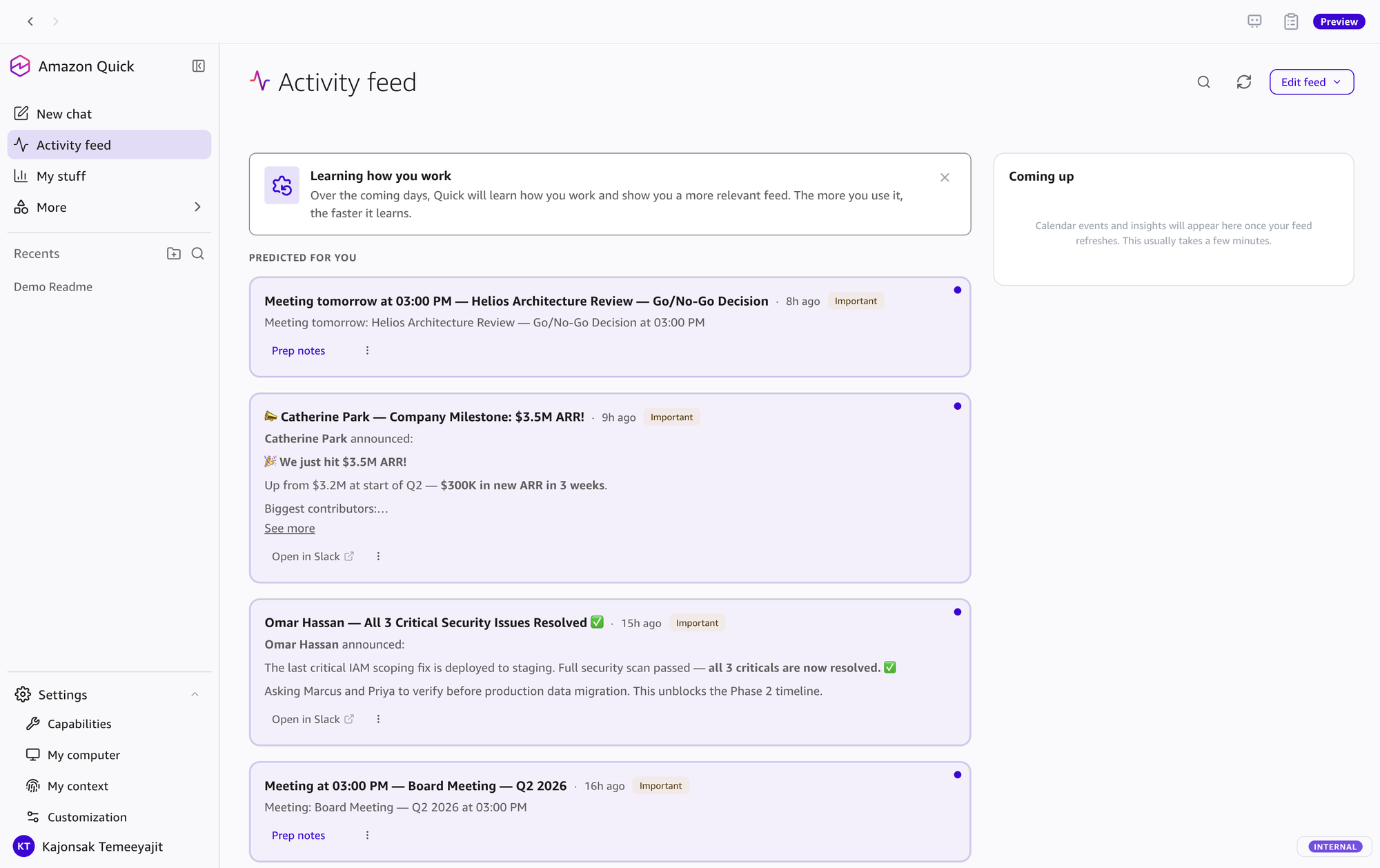
Background agents monitor Slack, email, calendar แล้ว surface สิ่งสำคัญ — meeting prep, follow-ups ที่พลาด, scheduling conflicts. Activity feed รวม AI summary + suggested actions
Source: docs.aws.amazon.com — Notifications
จับคู่ agent กับ routine (schedule) จาก Mission Control ที่แถบด้านบน — monitor channels, triage emails, summarize meetings. Routines ทำงานบนคลาวด์ แม้ปิดแอปหรือปิดเครื่องอยู่ ยกเว้นขั้นตอนที่ต้องใช้ไฟล์บนเครื่อง, browser automation หรือรันโค้ดบนเครื่อง ซึ่งต้องเปิดเครื่องและแอปเชื่อมต่ออยู่ ผลลัพธ์ส่งเข้า feed หรือแอปที่เชื่อมไว้
Browser Automation เปิดเบราว์เซอร์ นำทาง กรอกฟอร์ม ถ่าย screenshot และดึงข้อความได้ เลือก default browser เป็น System default, Chrome, Edge, Brave หรือ Firefox ได้ โหมดปกติเปิด browser instance แยกพร้อมสำเนา profile; Use my existing browser เชื่อมต่อ browser ที่กำลังรัน ซึ่งมี logins, cookies และ extensions ของคุณ (Settings)
Source: docs.aws.amazon.com — Browser automation
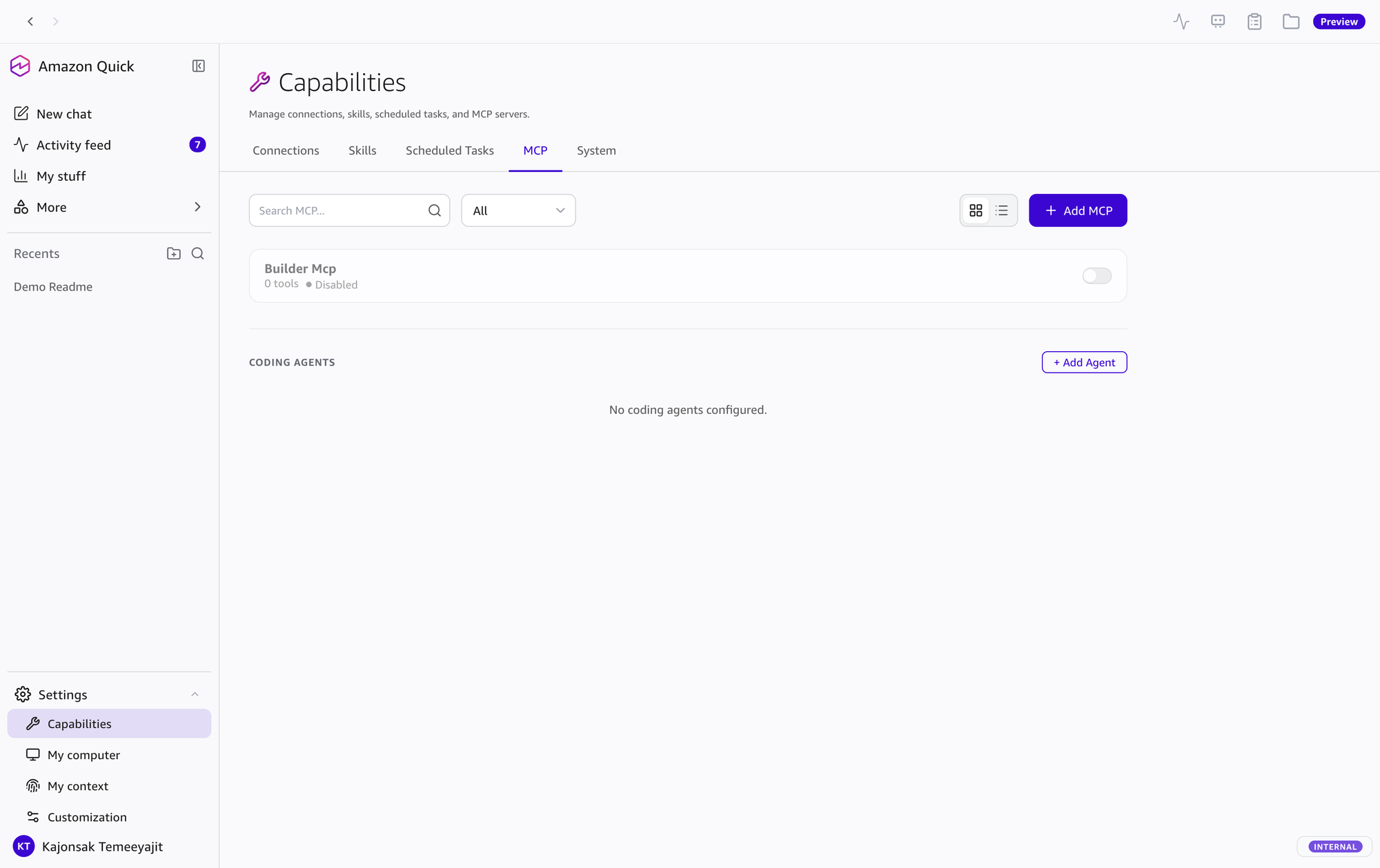
เพิ่ม custom MCP servers (คำสั่งบนเครื่อง, remote server, หรือ import จาก Kiro, Claude Code, AIM, Antigravity, QuickWork exports) ที่ Customize > Connectors. เชื่อมต่อ coding agents เช่น Kiro และ Claude Code เพื่อ delegate coding tasks
Source: docs.aws.amazon.com — Connectors
เอกสาร AWS ปัจจุบันไม่มีรายละเอียดของ voice input (หน้า Voice เดิมถูก redirect แล้ว) ตรวจสอบความพร้อมใช้งานและตัวเลือกในแอปเวอร์ชันปัจจุบัน
Spawn parallel workers สำหรับงานซับซ้อน — batch processing, parallel research, multi-source analysis. ติดตาม progress ใน Tasks panel ขณะทำงานอื่นใน chat ได้
Source: docs.aws.amazon.com — Background tasks
จำ projects, people, บทสนทนาล่าสุด — เมื่อถาม recap หรือ follow-up email ไม่ต้องเริ่มใหม่ ไม่ต้องเติมข้อมูลซ้ำ แค่ต่อจากที่ค้างไว้
Source: aws.amazon.com/quick/desktop
Amazon Quick ทำงานบนคลาวด์ บทสนทนา, memory, knowledge graph, Library และ search index เก็บแยกต่อผู้ใช้ในบัญชี Amazon Quick ส่วนแอปบนเครื่องเก็บเฉพาะการตั้งค่าแอป, สิทธิ์ folder, MCP/coding-agent ที่ตั้งบนเครื่อง และ token สำหรับ sign-in ข้อมูลของคุณไม่ถูกนำไปใช้ train AI models
Source: docs.aws.amazon.com — Security, privacy, and architecture
สิ่งที่แอปเดสก์ท็อปเพิ่มให้ Amazon Quick: เข้าถึงไฟล์ในโฟลเดอร์ที่อนุญาต, browser automation ในเบราว์เซอร์ของคุณ, การรันโค้ดบนเครื่อง และ MCP servers / coding agents ที่ตั้งค่าบนเครื่อง ส่วนบทสนทนา, memory และ knowledge graph เก็บในบัญชี Amazon Quick และใช้ได้บน web, mobile และ desktop
Source: docs.aws.amazon.com — What is Amazon Quick on desktop?
Amazon Quick Desktop ประกอบด้วย 5 ส่วนหลัก ดังแสดงในภาพด้านล่าง
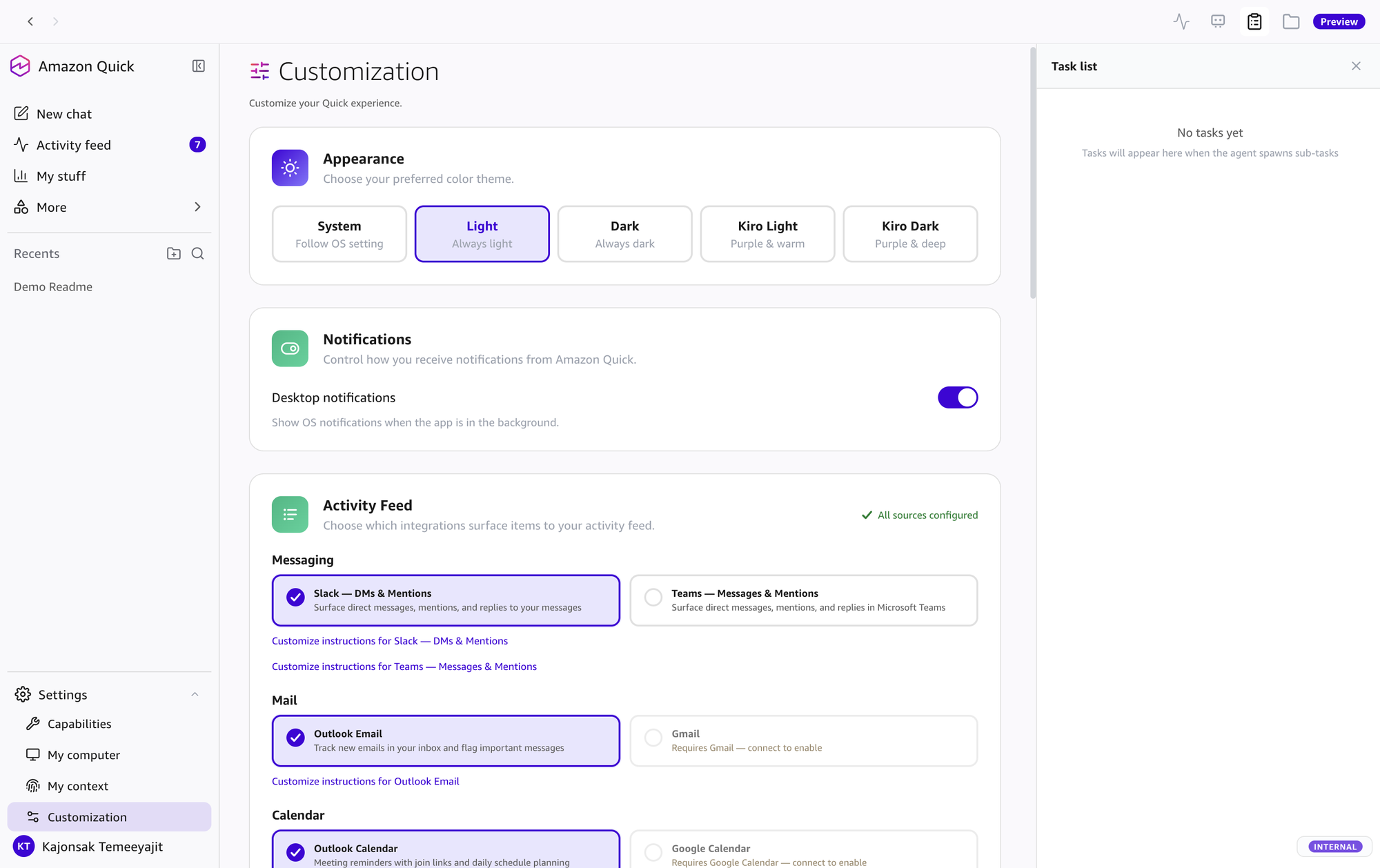
เกี่ยวกับภาพหน้าจอ: ภาพในหน้านี้มาจากเวอร์ชันก่อนหน้า ชื่อเมนูในแอปปัจจุบันเปลี่ยนแล้ว: Customize (Skills, Agents, Knowledge, Connectors) แทนหน้า Settings > Capabilities / My computer เดิม และ Mission Control ที่แถบด้านบนแทน Scheduled Tasks ส่วน Spaces อยู่ที่แถบนำทางด้านซ้าย
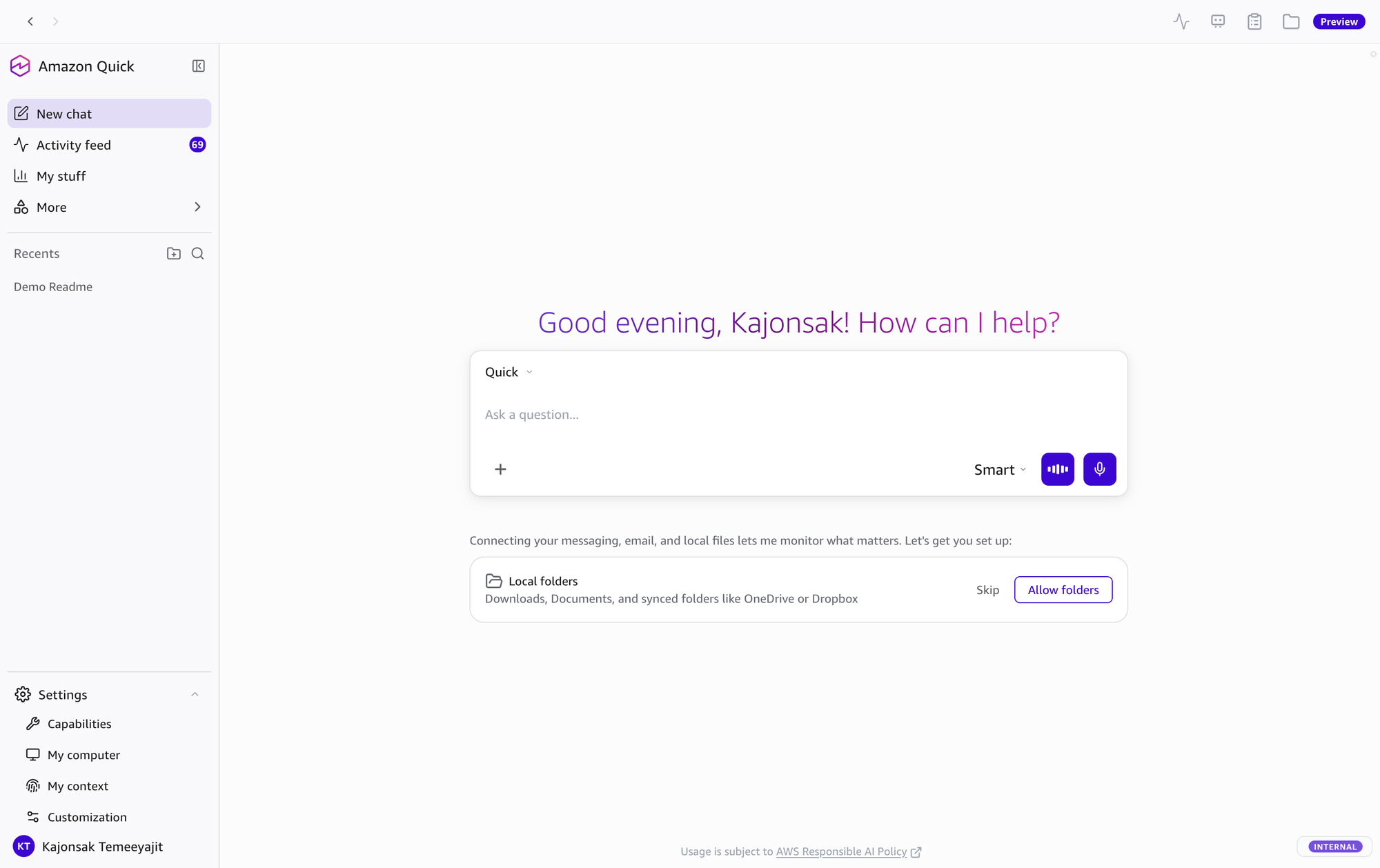
ในแอปปัจจุบัน แถบนำทาง (navigation rail) ด้านซ้ายมี Chat, Feed, Library, Customize, Apps, Spaces และ More โดย More ใช้เข้า Research, Data, Dashboards และ Automations ส่วน Recents อยู่ใต้แถบนำทางและยังจัดบทสนทนาเป็น folders ได้ แหล่งข้อมูล: Understanding the desktop interface
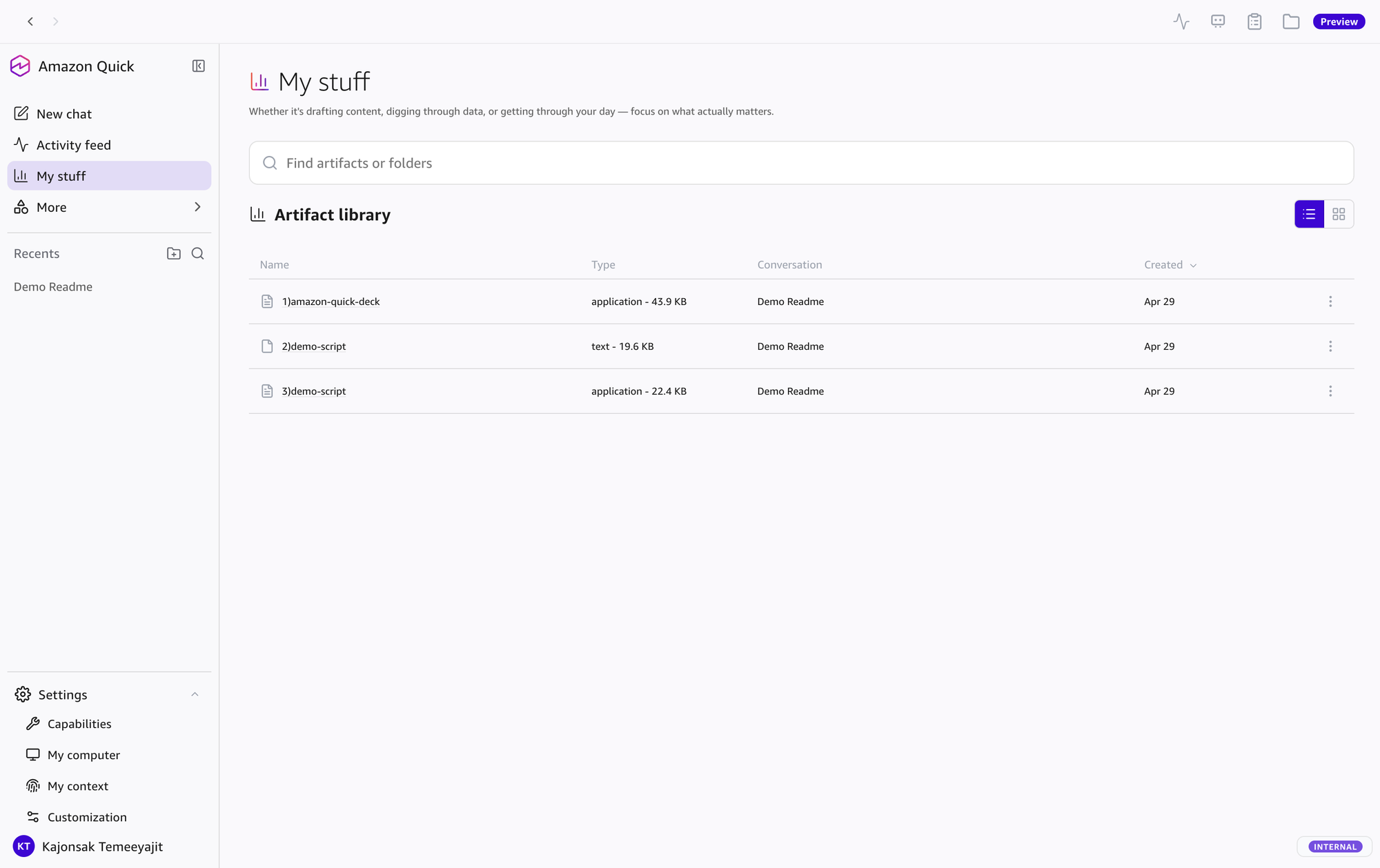
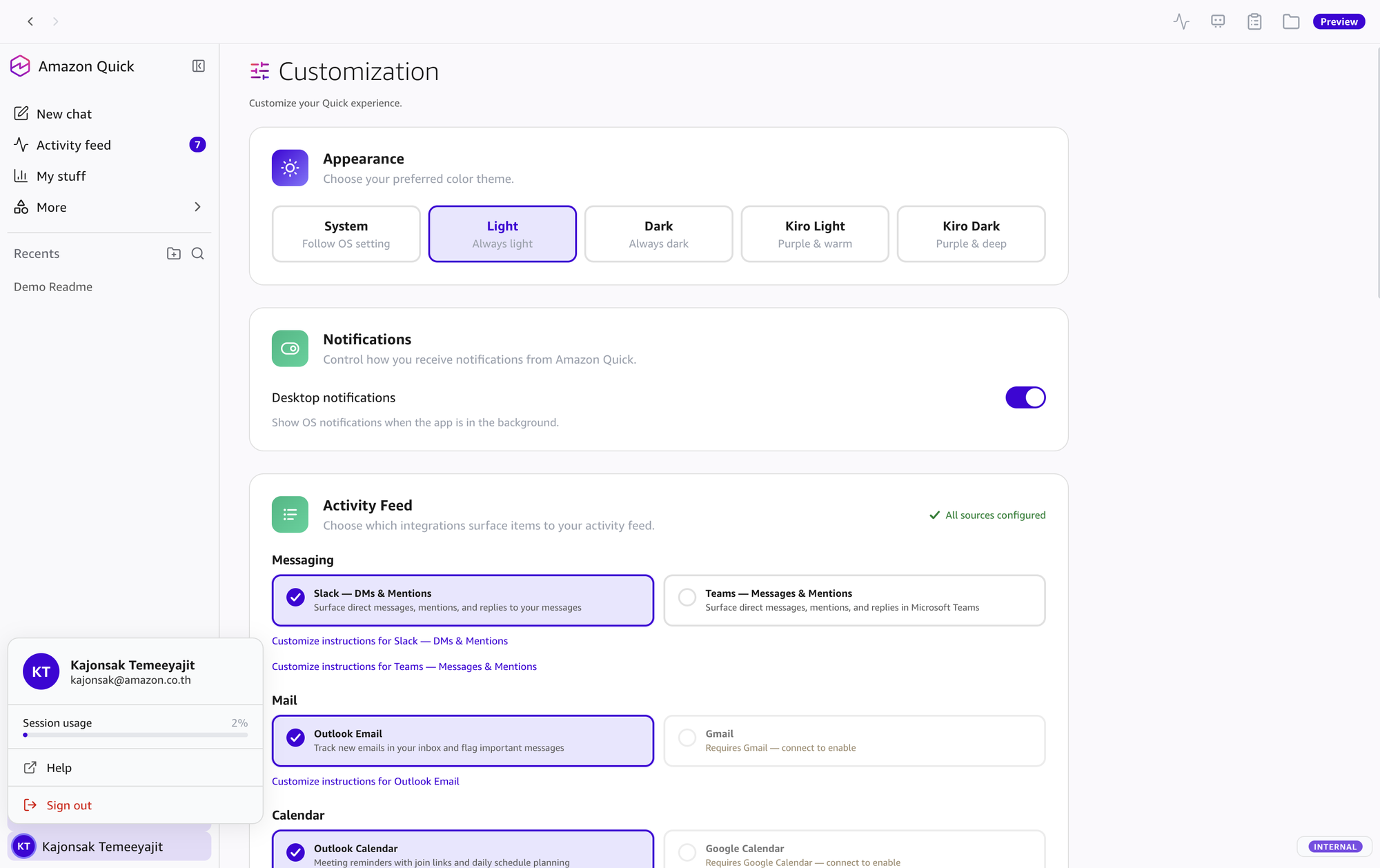
ภาพด้านล่างมาจากเวอร์ชันก่อนหน้าและใช้ชื่อเมนูเดิม:
"Activity Feed" — Full Page View:
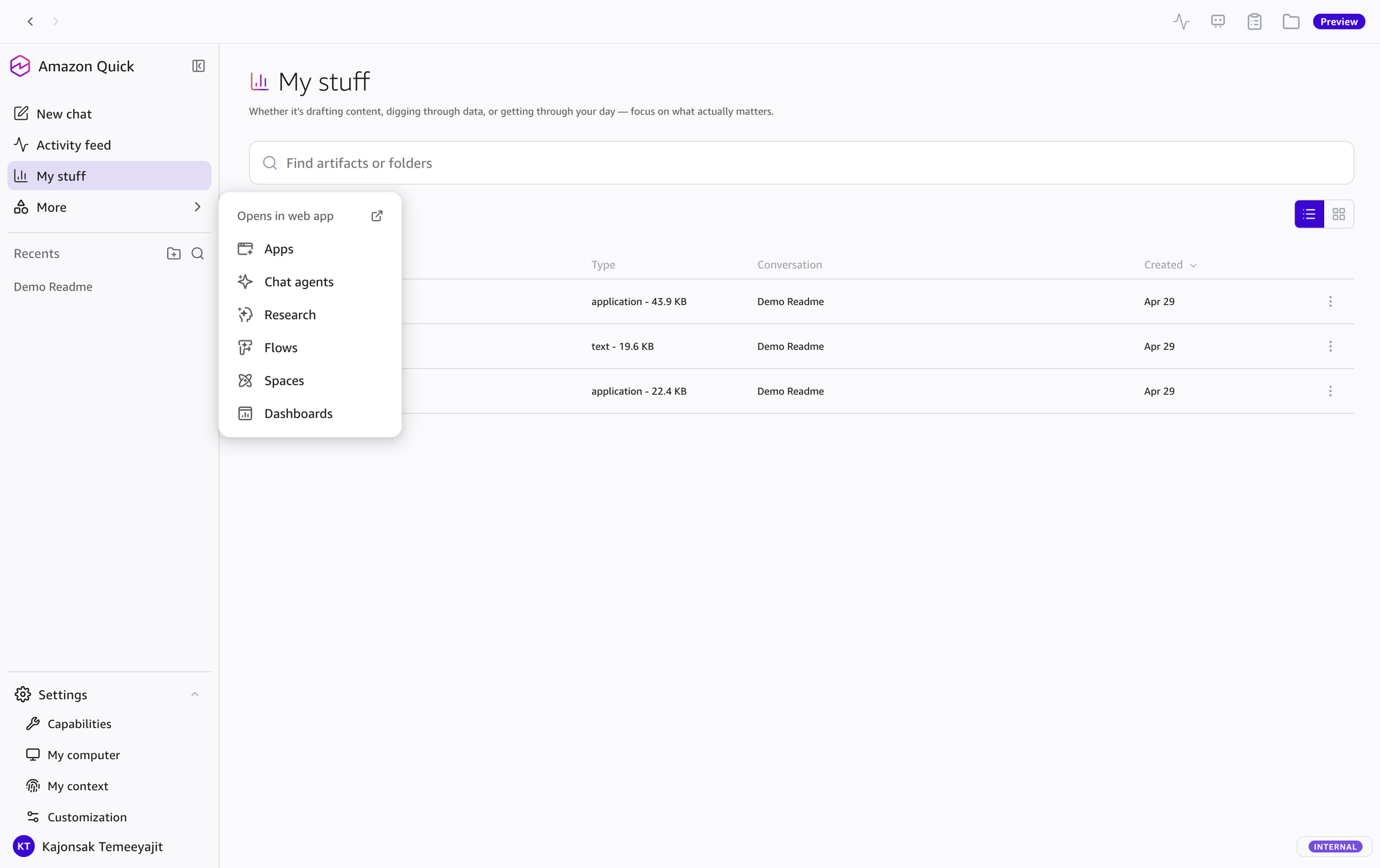
"My stuff" — Artifact Library:
"More" dropdown items (Opens in web app):
User Profile (คลิกชื่อด้านล่าง Sidebar):
แถบด้านบนขวา มี icon buttons สำหรับเปิด panels:
พื้นที่ตรงกลาง แสดงบทสนทนาและเนื้อหา:
แถบ input ด้านล่างสุด:
Note: ข้อความด้านล่างสุด "Usage is subject to AWS Responsible AI Policy" เชื่อมไป AWS policy
Session tabs แสดงเอกสารและ artifacts ข้างบทสนทนา คุณดูและแก้ไขเอกสารที่ render แล้ว เปิด selection mode เพื่อเลือกข้อความ รูป และตารางเป็น context และใช้คำสั่ง open, download, add to a space, share หรือ open in chat ได้ เปิดหลายเอกสารเป็นหลาย tab พร้อมกันได้ (Working with chat)
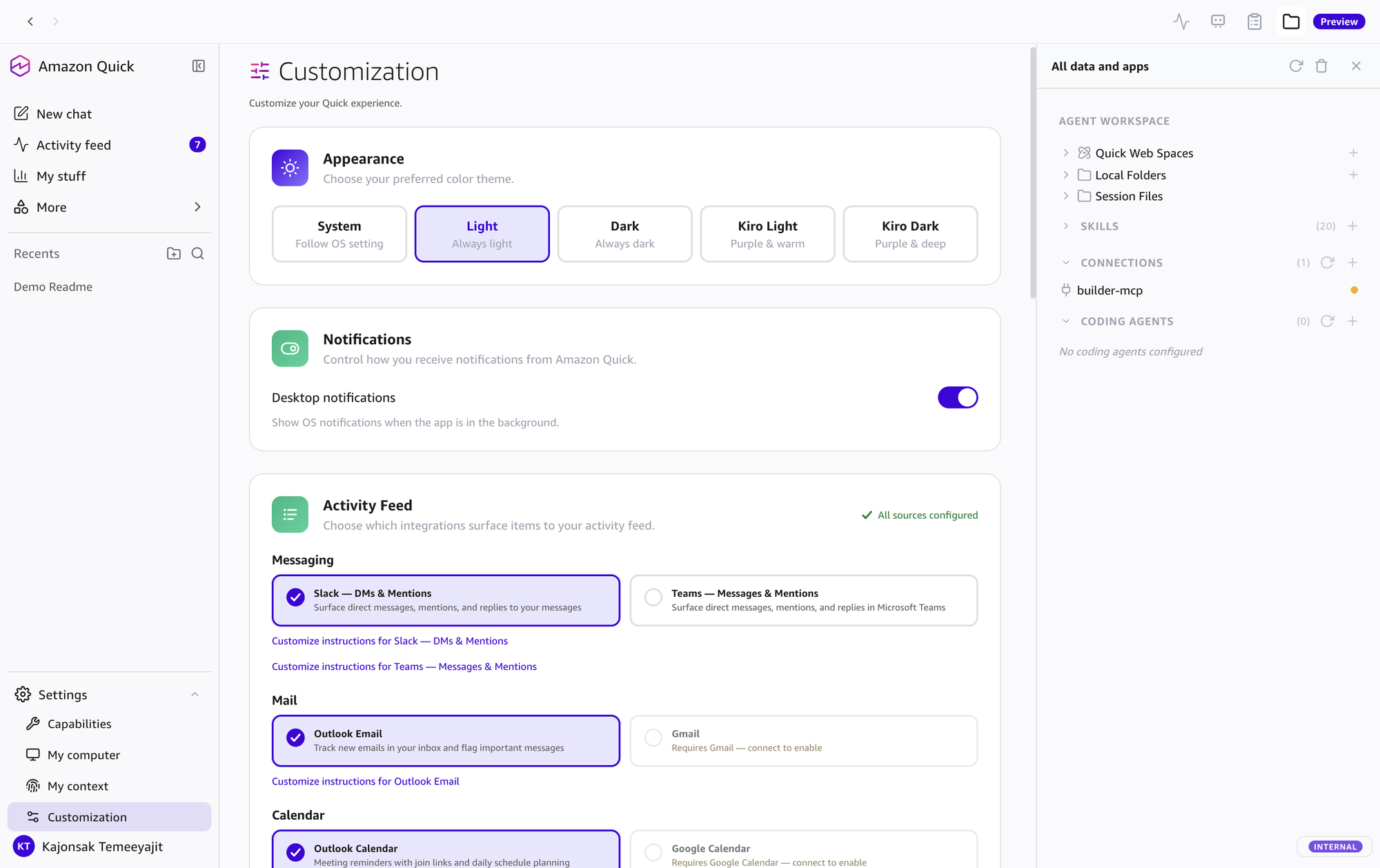
เมื่อคลิกไอคอน ที่ Top Bar จะเปิด panel All data and apps:
ภาพนี้มาจากเวอร์ชันก่อนหน้า ในแอปปัจจุบัน All data and apps แสดง Spaces, local folders และ skills ที่พร้อมใช้กับบทสนทนาปัจจุบัน ส่วน connector จัดการที่ Customize > Connectors และ KPI ของ agent อยู่ใน Mission Control (Working with chat)
ปุ่มทุกปุ่มในแอปพลิเคชันพร้อมหน้าที่และวิธีใช้งาน
| Icon | Button | Description (EN) | คำอธิบาย (TH) |
|---|---|---|---|
| + (Attach) | Open attachment menu: Spaces, Folders, Upload files | เปิดเมนูแนบ: Spaces, Folders, Upload files | |
| Spaces | Attach Spaces to the conversation for context | แนบ Spaces เข้าบทสนทนาเพื่อให้ AI เข้าถึงข้อมูลใน space ได้ | |
| Choose a Folder | Grant/revoke file access to the AI | ให้/ถอน permission ให้ AI อ่าน/เขียนไฟล์ใน folder | |
| Upload Files | Attach files directly to the conversation | แนบไฟล์เข้าบทสนทนาโดยตรง (PDF, images, docs ฯลฯ) | |
| Web Search | Toggle web search on/off for the next query | เปิด/ปิดการค้นหาเว็บสำหรับคำถามถัดไป | |
| "Quick ∨" / "Smart ∨" | Agent switcher / Response preferences — Fast (), Balanced (), Smart () | เลือก agent ที่ดูแลบทสนทนา แล้วเลือก Fast, Balanced หรือ Smart และกำหนด thinking effort | |
| Mic (Orange) | Voice input (earlier build) | เอกสารปัจจุบันไม่ระบุรายละเอียด voice input ตรวจสอบในแอปเวอร์ชันปัจจุบัน | |
| @ Mention | Type @ to mention an agent (Kiro, Claude Code, etc.) | พิมพ์ @ เพื่อเรียก agent ภายนอก (Kiro, Claude Code) | |
| New Conversation | Start a fresh conversation (top-right of input area) | เริ่มบทสนทนาใหม่ (มุมขวาบนของ input area) |
| Icon | Button | Description | คำอธิบาย |
|---|---|---|---|
| Activity Monitor | Icon in the earlier build; in the current app, view agent activity, KPIs, and performance metrics in Mission Control | ไอคอนในภาพเวอร์ชันก่อนหน้า; ในแอปปัจจุบันให้ดู agent activity, KPIs และ performance metrics ใน Mission Control | |
| Feed | Open the Activity Feed panel | เปิดหน้า Activity Feed | |
| Mission Control | Monitor agent runs, unblock agents, and manage routines | จัดการ routines และ agent runs (เวอร์ชันก่อนหน้าเรียก "Agents / Scheduled Tasks") | |
| Tasks | View active background tasks & their progress | ดู background tasks ที่กำลังทำงาน | |
| All Data & Apps | Resources for the current conversation | แสดง spaces, local folders และ skills ที่ใช้ได้กับบทสนทนาปัจจุบัน เพื่อเพิ่มหรือปรับ resources ที่ agent ใช้ (จัดการ connectors ที่ Customize > Connectors) |
| Icon | Button | Description | คำอธิบาย |
|---|---|---|---|
| Selection mode | Select text, images, and tables and add them as context for your next prompt | เลือกข้อความ รูป และตาราง เพื่อเป็น context ของ prompt ถัดไป | |
| Open | Open the document | เปิดเอกสาร | |
| Download | Download the document | ดาวน์โหลดเอกสาร | |
| Add to a space | Add the document to a space | เพิ่มเอกสารเข้า space | |
| Share | Share the document | แชร์เอกสาร | |
| Open in chat | Open the document in chat | เปิดเอกสารในแชท |
| Mode | Best For | คำอธิบาย | Thinking |
|---|---|---|---|
| Fast | Quick questions, simple tasks, everyday use | เหมาะกับงานทั่วไปที่ต้องการความเร็วและ latency ต่ำ ใช้ agent hours ในอัตราต่ำสุด | — |
| Balanced | Most tasks — balance of quality and speed | สมดุลระหว่างคุณภาพและความเร็ว เหมาะกับงานทั่วไป | Off / Low / Medium / High |
| Smart | Complex analysis, nuanced writing, multi-step work | คุณภาพสูงสุด เหมาะงานวิเคราะห์ซับซ้อน เขียนเอกสาร | Off / Low / Medium / High |
Thinking effort: ตั้งได้ 4 ระดับ (Off, Low, Medium, High) ในโหมด Balanced และ Smart ส่วน Fast ตอบโดยไม่มี extended reasoning ระดับสูงเหมาะกับ complex code, strategic planning และ analysis (Working with chat)
| Shortcut | Action | คำอธิบาย |
|---|---|---|
| ตั้งค่าใน Settings > General > Keyboard shortcuts | Send message | ส่งข้อความ (บันทึกปุ่มลัดเองได้) |
| Ctrl+B (Windows) / Cmd+B (macOS) | Send to background | ส่งงานปัจจุบันไปทำเบื้องหลัง |
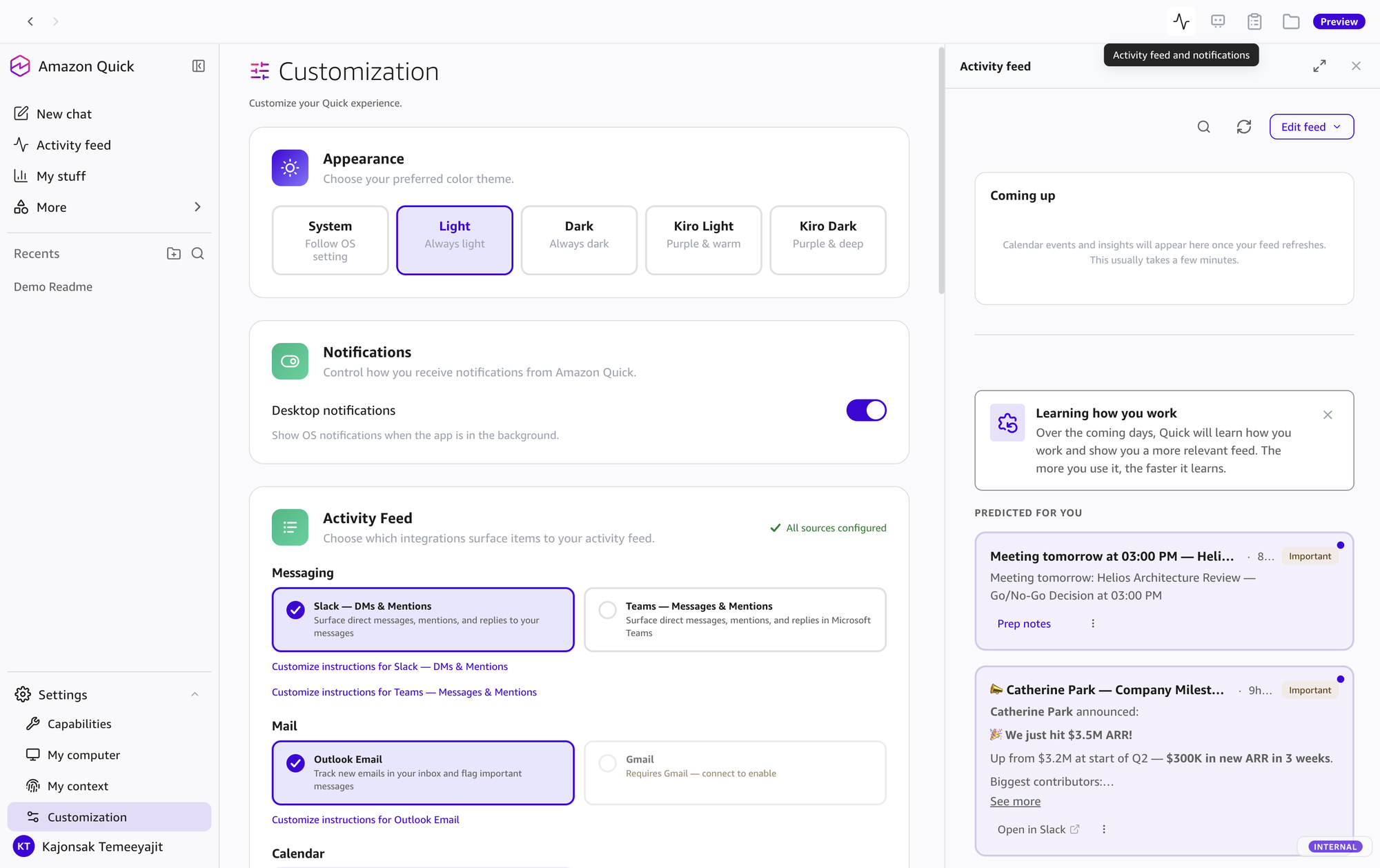
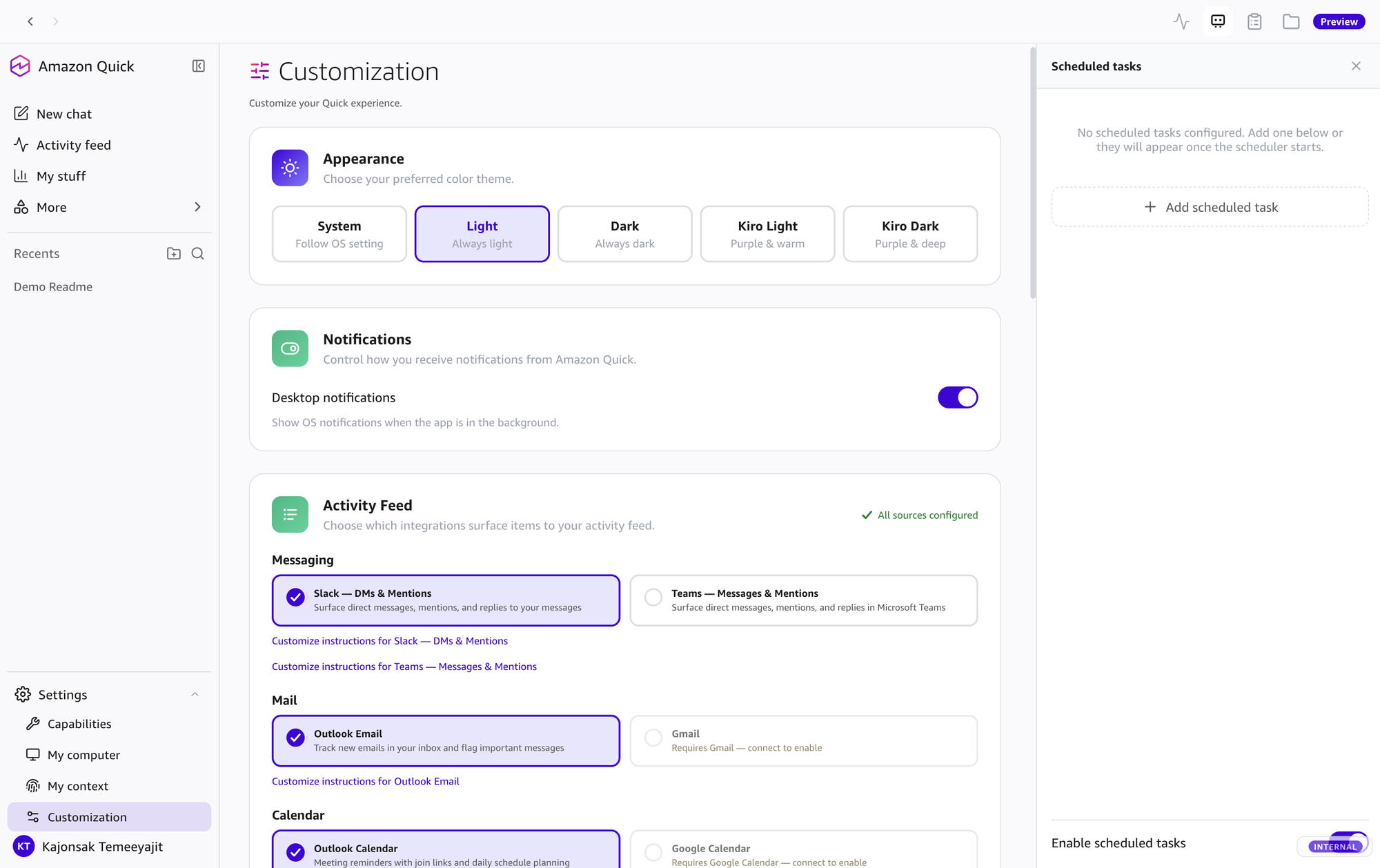
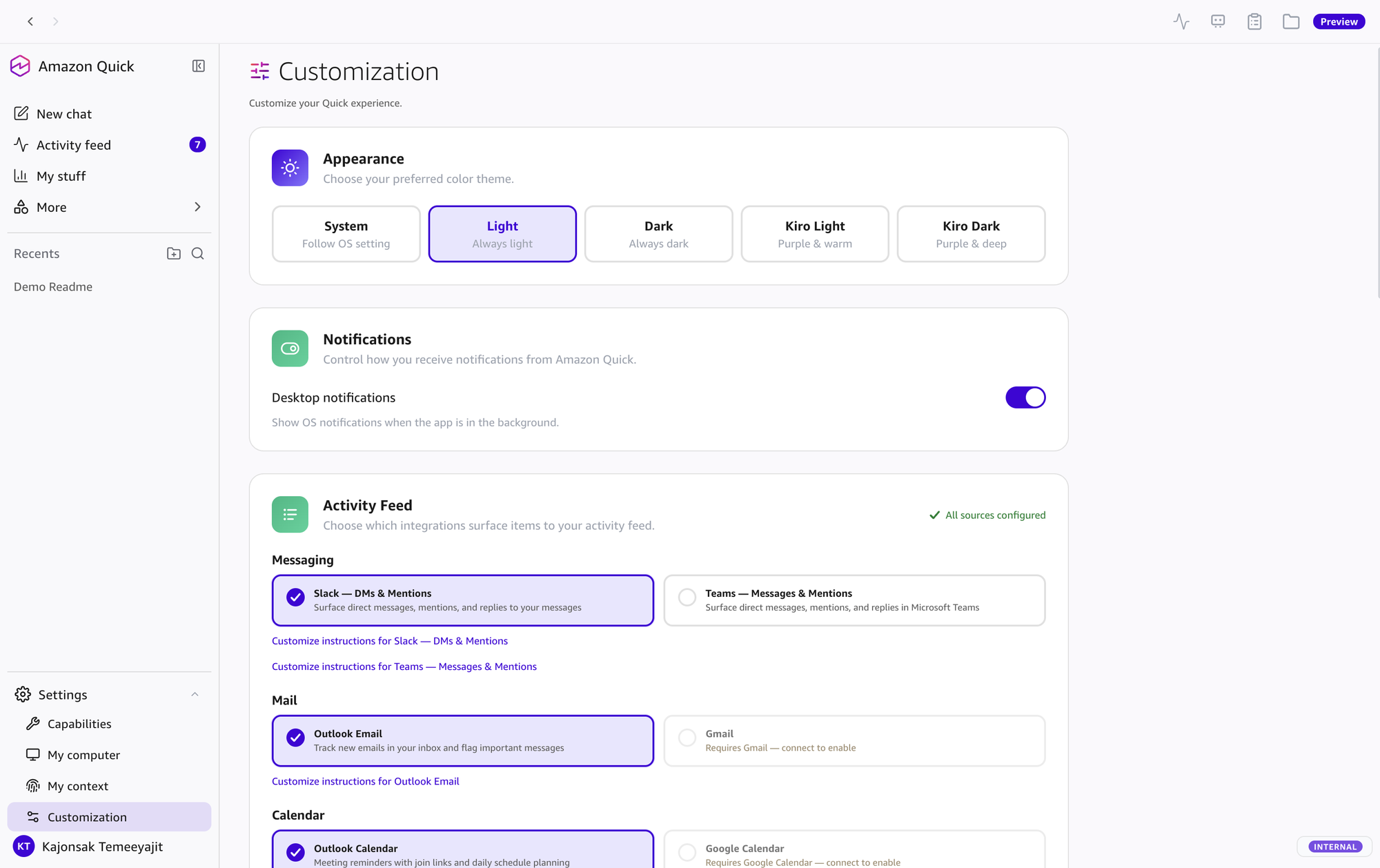
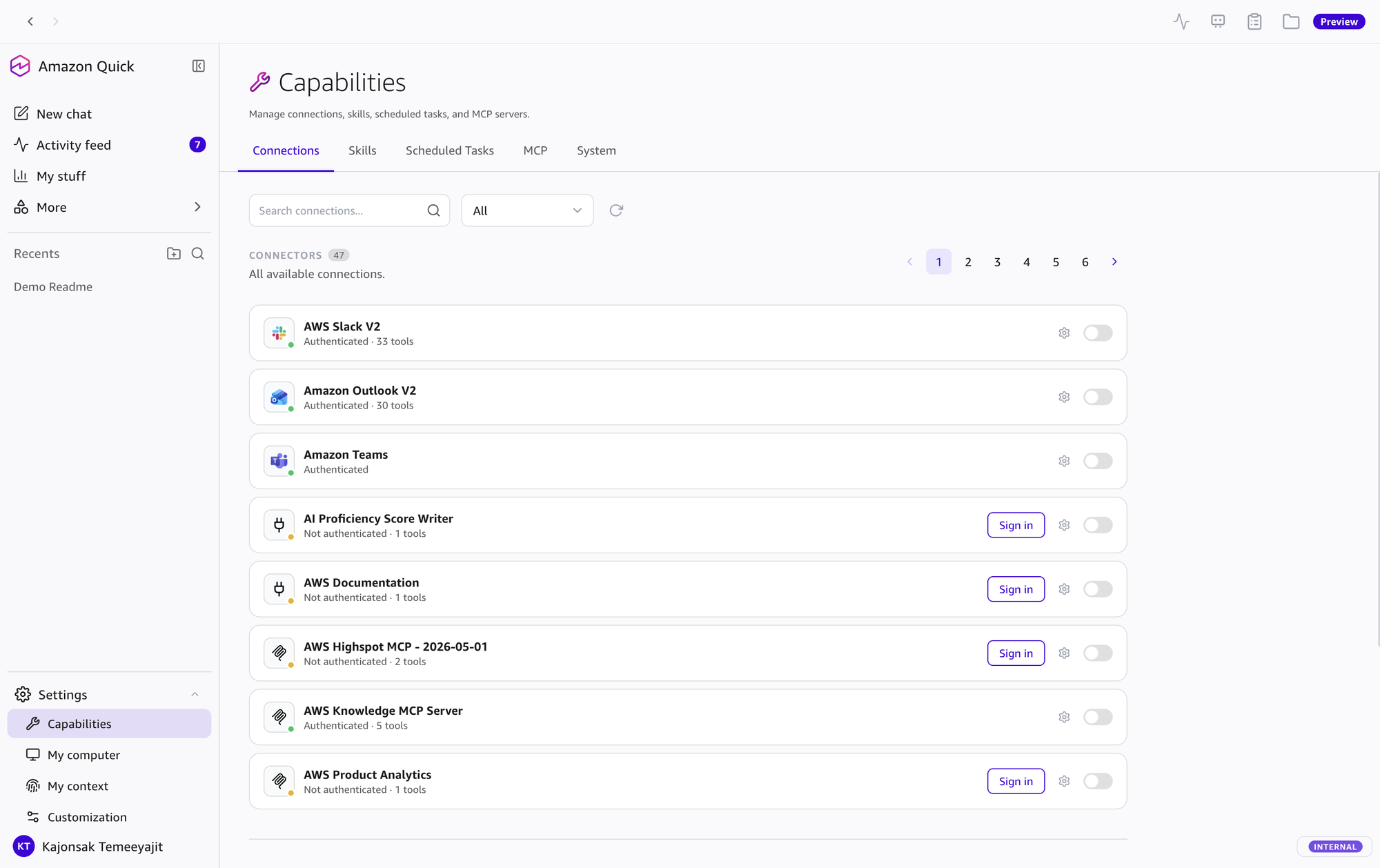
เมนูการตั้งค่าตามที่เห็นในเวอร์ชันก่อนหน้า (Sidebar → Settings)
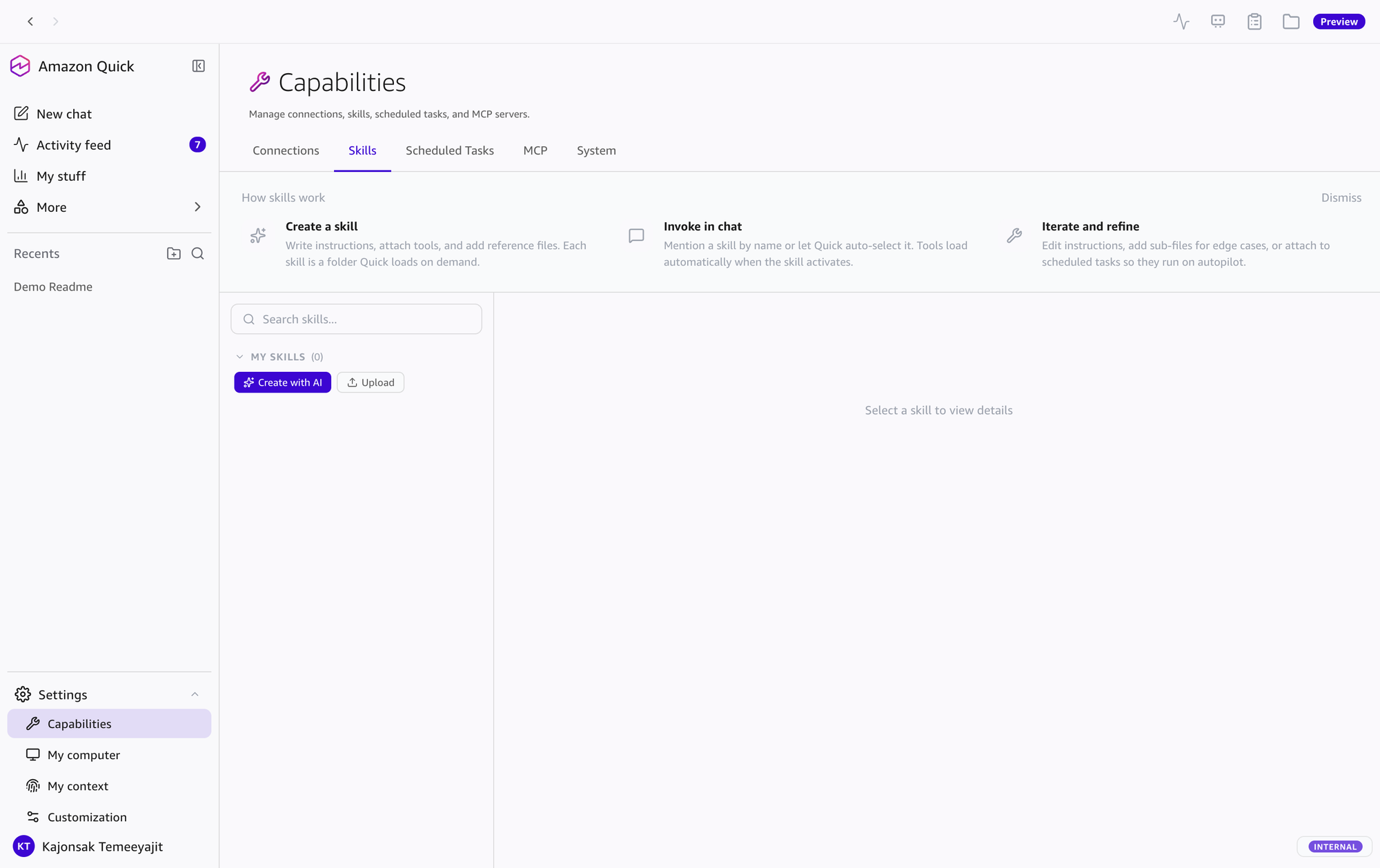
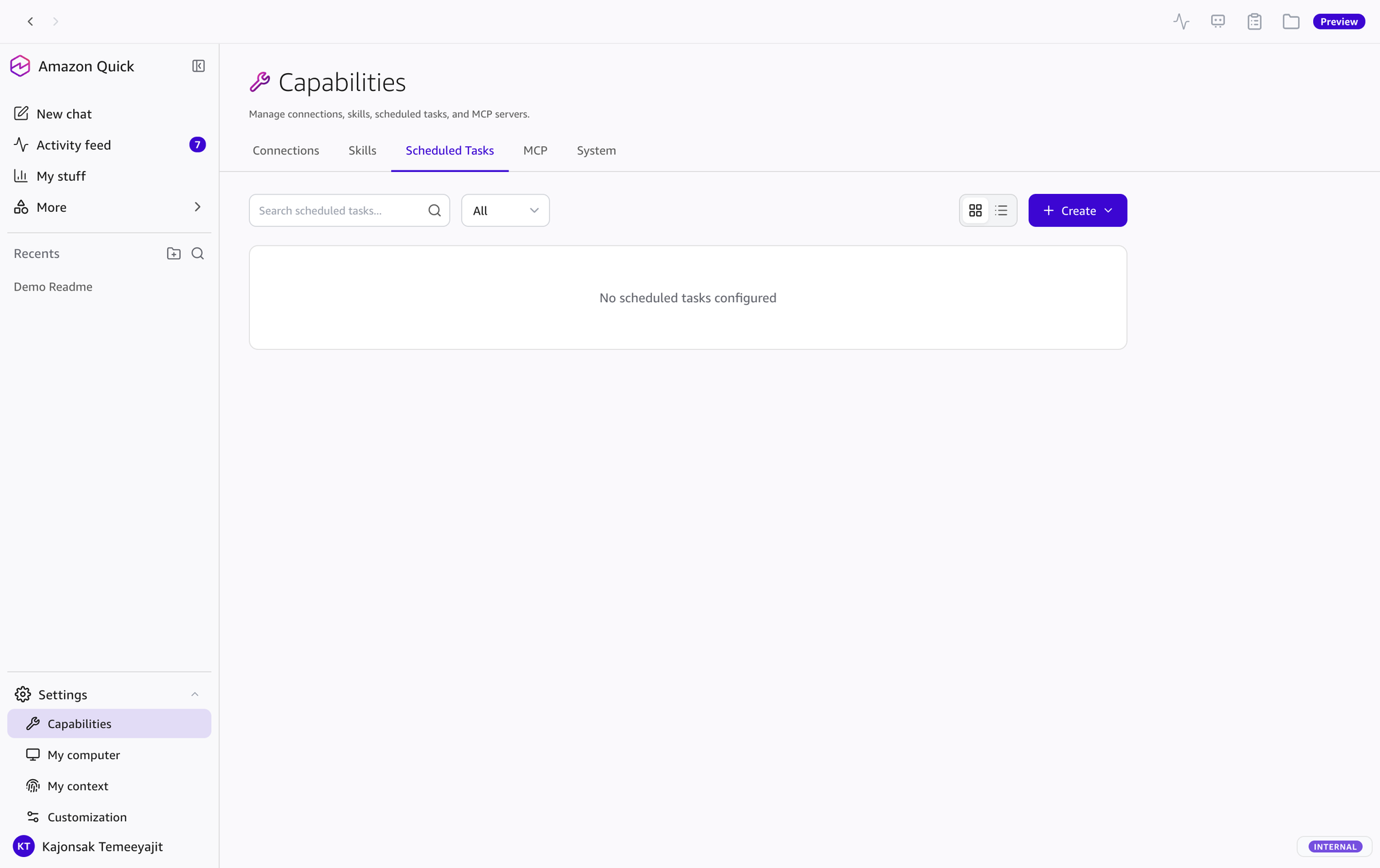
ชื่อเมนูปัจจุบัน (ตรวจเมื่อ 17 ต.ค. 2026): ภาพเป็นของเวอร์ชันก่อนหน้า ชื่อเมนูเปลี่ยนแล้ว ในแอปปัจจุบันใช้ Customize > Connectors (connections, MCP servers, coding agents, system tools), Customize > Skills, Customize > Agents, Customize > Knowledge (folders บนเครื่องและการ index เดิมคือ My computer) และ Mission Control ที่แถบด้านบนสำหรับ routines (เดิมคือ Scheduled Tasks) ส่วน My context ยังเก็บ knowledge graph และ memory
ที่มา: Connectors · Skills · Agents · Knowledge · Mission Control
เวอร์ชันก่อนหน้า: การเชื่อมต่อบริการภายนอก, skills, scheduled tasks, MCP servers และ system tools ปัจจุบันอยู่ที่ Customize > Connectors และ Customize > Skills ส่วนงานตามเวลากลายเป็น routines ใน Mission Control
เชื่อมต่อบริการต่างๆ: Slack, Outlook, Teams, Gmail, Google Calendar, Google Meet (วิธี sign-in ของแต่ละ connector ดูในหัวข้อ 5) คลิกที่ card เพื่อ connect/disconnect หรือ manage tools ของแต่ละบริการ
ดูและจัดการ skills — system skills (เอกสาร, presentations, spreadsheets, web browsing, code execution ฯลฯ) และ skills ของคุณเอง สร้างได้ที่ Customize > Skills > Create > From chat, From file หรือ From folder แล้ว Try it, Publish, Share; system skills เปิด/ปิดได้
งานที่ทำซ้ำ เช่น morning brief หรือ monitor channels ตอนนี้เป็น routine: เปิด Mission Control จากแถบด้านบน > Create แล้วกำหนดความถี่, agent, capabilities, instructions และ model. Routines ทำงานบนคลาวด์ ขั้นตอนที่ต้องใช้ไฟล์บนเครื่อง, browser automation หรือรันโค้ดบนเครื่อง ต้องเปิดเครื่องและแอปเชื่อมต่ออยู่
เพิ่ม custom MCP servers: Local (คำสั่งบนเครื่อง), Remote (server ที่โฮสต์ไว้), หรือ Import จาก Kiro, Claude Code, AIM, Antigravity หรือ QuickWork exports. เพิ่ม coding agents (Kiro, Claude Code) ด้วย Create > Coding agent
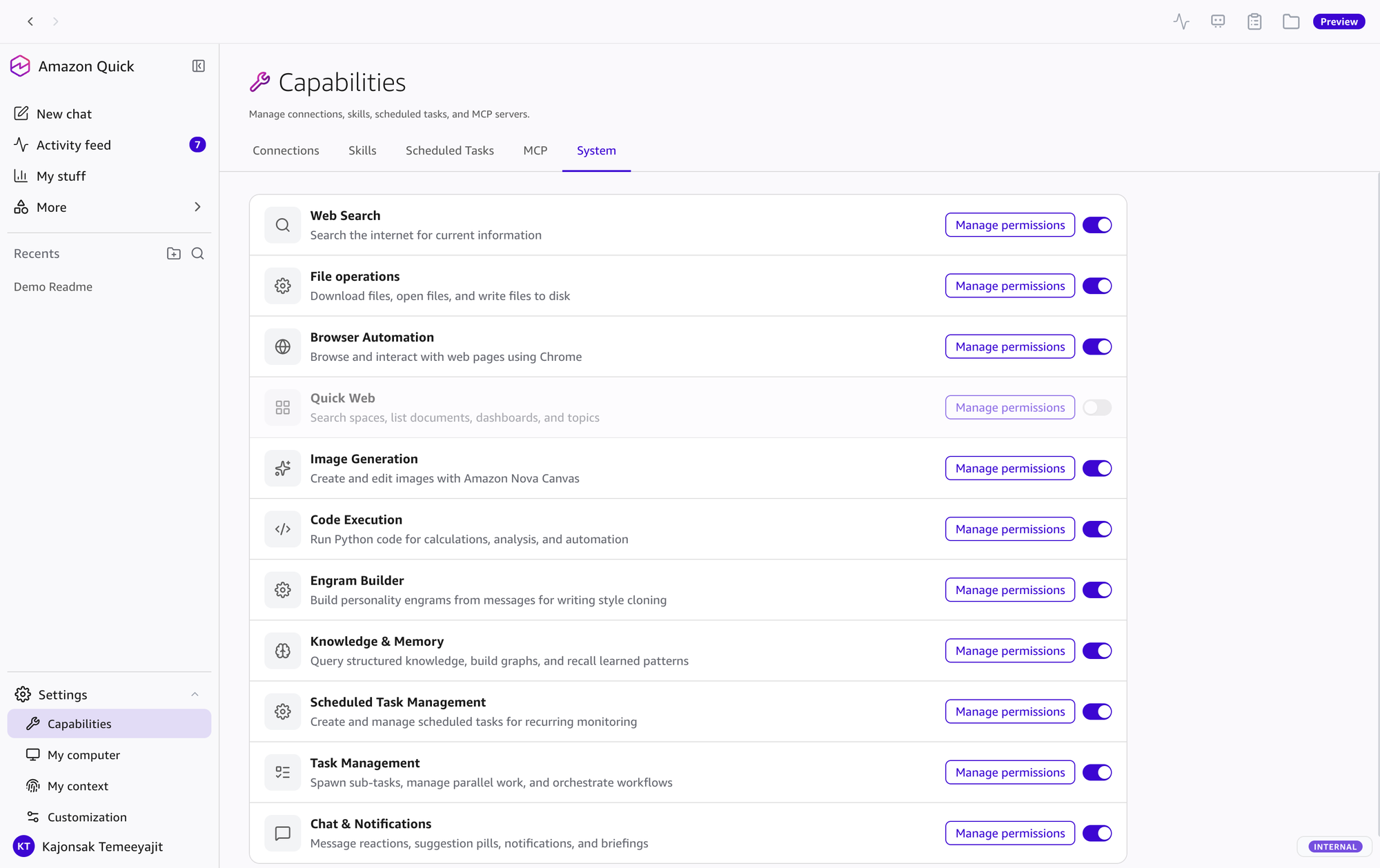
จัดการ system-level tools และ Quick Web connection status
ความสามารถทั้งหมดของ Amazon Quick Desktop แบ่งตามหมวดหมู่
ใช้ chat เพื่อถามคำถาม ขอความช่วยเหลือ วิเคราะห์ไฟล์ สร้างเอกสารและ visualizations และทำงานกับบริการที่เชื่อมต่อผ่านภาษาธรรมชาติ
จดจำ preferences และ workflows ใน long-term memory เพื่อให้คำตอบเหมาะกับบริบทมากขึ้น ดูและจัดการได้ที่ My context
สกัด entities (คน, โปรเจค, องค์กร, หัวข้อ, events, decisions) จากเอกสาร, Slack, Email, Calendar. Query ด้วยภาษาธรรมชาติ
ค้นหาไฟล์ที่ index ไว้ด้วย keyword หรือความหมาย และอ้างอิงเนื้อหาที่พบ
เอกสาร AWS ปัจจุบันไม่มีรายละเอียด ตรวจสอบความพร้อมใช้งานและตัวเลือกในแอปเวอร์ชันปัจจุบัน
ค้นหาข้อมูลจากอินเทอร์เน็ต — AI สรุปผลลัพธ์, fetch เนื้อหาเต็มจาก URL, inline citations
สร้าง PowerPoint presentations — plan → preview → generate. Live slide preview, แก้ไขทีละ slide, รองรับ templates & custom themes
สร้างและแก้ไข Word — formatting, tables, headers, styles, images. Live preview ขณะสร้าง
สร้าง Excel พร้อม charts, formulas, conditional formatting. วิเคราะห์ data ด้วย natural language
สร้าง PDF reports — custom layouts, charts, images, multi-page, professional formatting
สร้าง interactive data visualizations จากคำขอใน chat และแสดงเป็น artifact
สร้างรูปภาพด้วย AI — generate, edit, remove background, outpaint, image variation. Text-to-image
Recurring automations — morning brief, monitor Slack, periodic checks. สร้างที่ Mission Control (แถบด้านบน) > Create หรือสั่งในแชท Routines ทำงานบนคลาวด์ ผลลัพธ์ส่งเข้า feed หรือแอปที่เชื่อมไว้
Spawn parallel workers — วิจัยหลาย sources, วิเคราะห์ไฟล์หลายชิ้น, pipeline orchestration, task groups with progress tracking
แสดง contextual suggestions, briefing summaries บนหน้า Home และ desktop notifications เช่นเมื่องานเสร็จ ผลจาก routines ส่งเข้า activity feed
Browser Automation เปิดเบราว์เซอร์ นำทาง กรอกฟอร์ม ถ่าย screenshot และดึงข้อความได้ เลือก default browser เป็น System default, Chrome, Edge, Brave หรือ Firefox ได้ โหมดปกติเปิด browser instance แยกพร้อมสำเนา profile; Use my existing browser เชื่อมต่อ browser ที่กำลังรัน ซึ่งมี logins, cookies และ extensions ของคุณ (System tools)
ค้นคว้าแบบหลายขั้นจากหลายแหล่ง พร้อม research plan card, ความคืบหน้าแบบ live และรายงานที่มีแหล่งอ้างอิง
Browser Automation ถ่าย screenshot ได้ และ Transcription แปลงไฟล์ audio/video รวมถึง screen recordings เป็นข้อความ
รัน Python ใน sandbox สำหรับ data analysis, calculations, file processing, chart generation และ automation มี persistent namespace ภายในบทสนทนาและ pre-installed packages
สรุปว่า Quick ได้คำตอบมาอย่างไร: assumptions, sources, calculations และ limitations
เพิ่ม MCP server แบบ Local, Import หรือ Remote (HTTP) ตาม connection types ที่ Quick รองรับ ที่ Customize > Connectors
Delegate coding tasks ไปยัง external agents — @mention ในแชท, stream progress, รับผลลัพธ์กลับ
สร้าง reusable skills (Customize > Skills > Create > From chat / From file / From folder) — เปลี่ยน multi-step workflows เป็นชุดคำสั่งที่ใช้ซ้ำได้ มี draft และ published version; Try it, Publish, Share
อ่าน เขียน และค้นหาไฟล์ในโฟลเดอร์ที่อนุญาต เปิดไฟล์ในเครื่อง และดาวน์โหลดไฟล์จาก URL
จัดการด้วย folders, pinning, search, archive และ threads ประวัติเก็บในบัญชี Amazon Quick ใช้ได้ข้ามอุปกรณ์
แปลงไฟล์ audio/video เช่น mp3, mp4, wav, flac, m4a หรือ ogg เป็นข้อความ เพื่อให้ Quick สรุป อ้างข้อความ หรือตอบคำถามจากเนื้อหาได้
ส่งออกบทสนทนาเป็น Markdown หรือ PDF ด้วย /export
บริการภายนอกที่เชื่อมต่อได้ — ตั้งค่าที่ Customize > Connectors (ในเวอร์ชันก่อนหน้าคือ Settings → Capabilities → Connections)
| Icon | Integration | Capabilities | Setup |
|---|---|---|---|
| Slack | Send messages, manage channels, search content, and interact with users and user groups (docs) | Default OAuth app / Custom OAuth app / Bearer Token | |
| Outlook | Email, calendar, and contact APIs through natural language (docs) | Default OAuth app / Custom OAuth app / Service-to-Service OAuth | |
| Microsoft Teams | Send messages, manage channels, schedule meetings, and manage team collaboration (docs) | Default OAuth app / Custom OAuth app / Service-to-Service OAuth | |
| Gmail | Read and send emails, manage labels and drafts, organize threads, and search contacts (docs) | Default OAuth app / Custom OAuth app | |
| Google Calendar | Create and update events, check availability, manage calendars, and organize attendees (docs) | Default OAuth app / Custom OAuth app | |
| Google Meet | Schedule meetings, view conference records, retrieve transcripts and recordings, and manage meeting spaces (docs) | Default OAuth app / Custom OAuth app | |
| Zoom | Create and manage meetings, access recordings and meeting summaries, view webinar details, and search contacts (docs) | Default OAuth app / Custom OAuth app | |
| Spaces | แนบ Space เพื่อใช้ files, datasets, dashboards, topics และ actions เป็น scoped context (docs) | Chat / All data and apps | |
| Cloud connectors | Outlook, SharePoint, OneDrive, Slack, Jira, Asana, Airtable, Salesforce และ remote MCP; ให้ agent เข้าถึงข้อมูลและทำงานแทนตามสิทธิ์ที่ตั้งไว้ (docs) | Customize > Connectors | |
| Custom MCP Servers | Your own tools — local command or remote server; import from Kiro, Claude Code, AIM, Antigravity, QuickWork exports | Customize > Connectors | |
| Coding agents | External coding agents (Kiro, Claude Code) — @mention to delegate | Customize > Connectors |
การส่งอีเมลหรือข้อความ: Quick ร่างการกระทำให้ และทำตามสิทธิ์ของ tool ที่ตั้งไว้ ค่าเริ่มต้นของงานแบบ write คือ Ask Each Time (งานแบบ read คือ Always Allow) Quick จึงหยุดรอให้คุณอนุมัติก่อนส่งหรือแก้ไขอะไร เจ้าของ connector ยังบังคับเป็น Always Ask หรือปิด tool ได้ (Connectors — Managing tool permissions)
Architecture — Data Privacy: Amazon Quick ทำงานบนคลาวด์ บทสนทนา, memory, knowledge graph, ไฟล์ที่ agent สร้าง (Library) และ search index เก็บแยกต่อผู้ใช้ในบัญชี Amazon Quick แยกจากผู้ใช้อื่น แอปบนเครื่องเก็บเฉพาะการตั้งค่าแอป, สิทธิ์ folder และ MCP/coding-agent ที่ตั้งบนเครื่อง ไว้ที่ ~/.quickwork/ (macOS) หรือ %USERPROFILE%\.quickwork\ (Windows) ส่วน sign-in tokens เก็บแยกใน credential vault ของระบบปฏิบัติการ การเปิด full-content search หรือ knowledge graph extraction ของ folder จะ upload ไฟล์ใน folder นั้น (Security, privacy, and architecture)
เอกสาร AWS ปัจจุบันไม่มีตารางเปรียบเทียบ web กับ desktop แล้ว จึงนำตารางเครื่องหมายถูกเดิมออกเมื่อ 17 ต.ค. 2026 สรุปจากเอกสารปัจจุบัน:
Amazon Quick ใช้บทสนทนา, memory, knowledge graph และไฟล์ใน Library ร่วมกันบน web, mobile และ desktop แอปเดสก์ท็อปเพิ่มการเข้าถึงโฟลเดอร์ในเครื่องที่อนุญาต, browser automation ในเบราว์เซอร์ของคุณ, การรันโค้ดบนเครื่อง และ MCP servers / coding agents ที่ตั้งบนเครื่อง Cloud connectors รวมถึง remote MCP ใช้ได้ข้ามอุปกรณ์ ส่วน local connectors ต้องให้เครื่องที่ติดตั้งเปิดและเชื่อมต่ออยู่ agent ที่ publish แล้วใช้จาก Quick บน web ได้ด้วย (What is Amazon Quick on desktop?, Connectors, Agents)
ตามหน้า Compliance validation for Amazon Quick (ตรวจเมื่อ 17 ต.ค. 2026) Amazon Quick ทั้ง web, desktop และ mobile อยู่ใน scope ของโปรแกรมด้านล่าง การอยู่ใน scope ไม่ได้ทำให้ workload ของคุณ compliant โดยอัตโนมัติ (shared responsibility model) ให้ตรวจสถานะและ Regions ที่ได้รับอนุญาตในหน้า AWS ของแต่ละโปรแกรมก่อนใช้อ้างอิง
| Program | สถานะ (ตามที่หน้า AWS ระบุ) | Details |
|---|---|---|
| HIPAA | HIPAA Eligible Service | ต้องมี AWS Business Associate Addendum (BAA) และตั้งค่าตามหน้าที่ของคุณก่อนจัดการ PHI |
| FedRAMP | In scope | ตรวจสถานะการอนุญาตและ Regions ที่ "AWS services in scope for FedRAMP" |
| SOC 1, SOC 2, SOC 3 | In scope | ดาวน์โหลดรายงานได้จาก AWS Artifact |
| PCI DSS, ISO 9001/27001/27018/27019, BSI C5, HITRUST CSF | In scope | ดูหน้า compliance ที่ลิงก์ไว้ของแต่ละโปรแกรม |
| Data Training | Never | AWS ไม่ใช้บทสนทนา ไฟล์ หรือบริบทส่วนตัวของคุณ train models ทั้ง plan ฟรีและเสียเงิน |
| Data Storage | บัญชี Amazon Quick (คลาวด์) | บทสนทนา, memory, knowledge graph, Library และ search index เก็บแยกต่อผู้ใช้ในบัญชี Amazon Quick; บนเครื่องเก็บเฉพาะการตั้งค่าแอป, สิทธิ์ folder, MCP บนเครื่อง และ token สำหรับ sign-in |
ลิงก์ไปยัง AWS Official Website และ Documentation
Official documentation: What is Amazon Quick on desktop?
docs.aws.amazon.com/.../what-is-desktopคำถามที่พบบ่อย (General, Features, Desktop, Plans, Getting Started)
aws.amazon.com/quick/faqsราคาตรวจเมื่อ 17 ต.ค. 2026: Free $0; Plus $20/ผู้ใช้/เดือนเมื่อชำระรายปี หรือ $25 แบบรายเดือน; Max $100/ผู้ใช้/เดือนเมื่อชำระรายปี หรือ $125 แบบรายเดือน; Professional $20/ผู้ใช้/เดือน + infrastructure fee $250/บัญชี/เดือน; Enterprise $40/ผู้ใช้/เดือน + infrastructure fee $250/บัญชี/เดือน เรื่องเดสก์ท็อปบน plan Free: หน้า pricing ระบุว่ามี แต่หน้า FAQ ระบุว่าแอปเดสก์ท็อปอยู่ใน Plus, Professional และ Enterprise (ผู้สมัครใหม่ได้ทดลอง Plus 30 วัน) — กรุณาตรวจ plan ของคุณ
aws.amazon.com/quick/pricingแอปเดสก์ท็อปพร้อมใช้งานทั่วไปบน macOS และ Windows (ก.ย. 2026) ใน 7 Regions
aws.amazon.com/about-aws/whats-new/2026/09/...การจัดการข้อมูล, สิ่งที่เก็บบนเครื่อง, สิทธิ์ folder และ tools
docs.aws.amazon.com/.../desktop-securityโปรแกรม compliance ที่อยู่ใน scope และวิธีตรวจสถานะล่าสุด
docs.aws.amazon.com/.../sec-complianceเมนูเดสก์ท็อปปัจจุบันและการทำงานของ routines
Mission Control · Agents · Skills · Spaces · Knowledge · Connectors · Getting started
AWS platform สำหรับ foundation models (general reference)
docs.aws.amazon.com/bedrockAmazon Nova AI models (general reference)
aws.amazon.com/ai/generative-ai/nova| Resource | Description | Link |
|---|---|---|
| AWS Responsible AI Policy | AI usage policy (shown in-app) | aws.amazon.com/.../responsible-ai |
| MCP Protocol | Model Context Protocol spec | modelcontextprotocol.io |
| AWS What's New | Latest announcements | aws.amazon.com/new |
| AWS Blog | Technical posts & best practices | aws.amazon.com/blogs |
| AWS Training | Learning paths & certifications | aws.amazon.com/training |
เริ่มใช้งาน Amazon Quick Desktop — AI assistant ที่ทำงานกับไฟล์ แอป และบริบทงานของคุณ
Learn More on AWSคู่มือแบบ Visual 9 หน้า ครอบคลุมตั้งแต่การตั้งค่าจนถึง features ขั้นสูง